I released new code with better options. You can follow new instruction here.
#1. Install code
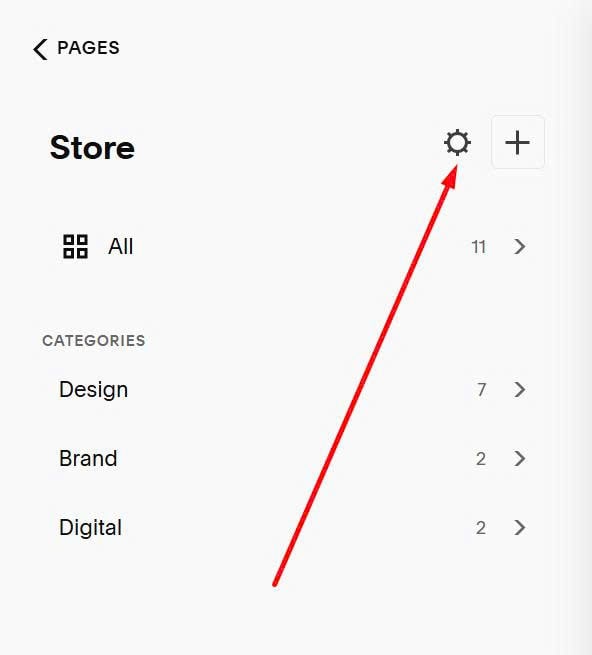
First, click Gear icon on Store Page
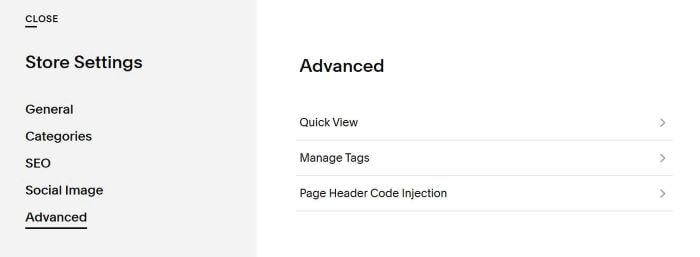
Next, click Advanced > Page Header Code Injection
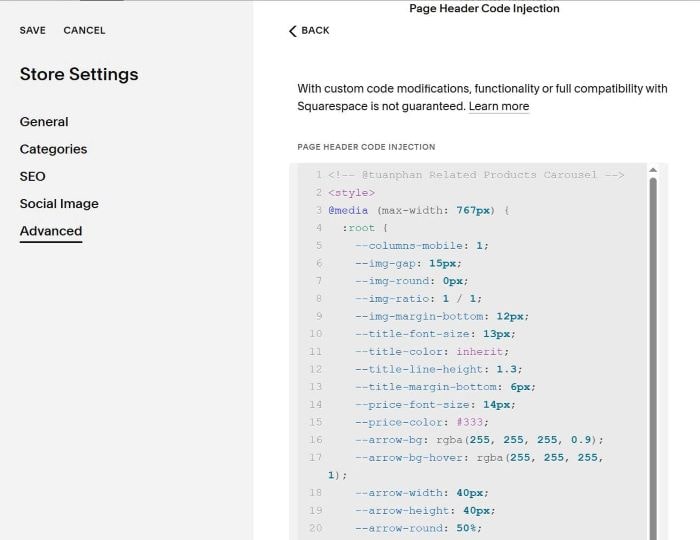
Paste this code
<!-- @tuanphan Related Products Carousel -->
<style>
@media (max-width: 767px) {
:root {
--columns-mobile: 1;
--img-gap: 15px;
--img-round: 0px;
--img-ratio: 1 / 1;
--img-margin-bottom: 12px;
--title-font-size: 13px;
--title-color: inherit;
--title-line-height: 1.3;
    --title-margin-bottom: 6px;
--price-font-size: 14px;
--price-color: #333;
--arrow-bg: rgba(255, 255, 255, 0.9);
--arrow-bg-hover: rgba(255, 255, 255, 1);
--arrow-width: 40px;
--arrow-height: 40px;
--arrow-round: 50%;
--arrow-font-size: 1.1rem;
--arrow-space: 0.5rem;
}
.product-related-products>div[data-section-width]{display:none!important}.tp-related-carousel-wrapper{max-width:100%;margin:0 auto;padding:20px 0;box-sizing:border-box}.tp-related-carousel-container{position:relative;width:100%;max-width:100%;overflow:hidden;padding:0;box-sizing:border-box}.tp-related-carousel-viewport{overflow:hidden;width:100%}.tp-related-carousel-track{display:flex;gap:var(--img-gap);transition:transform .5s ease}.tp-related-carousel-item{flex-shrink:0;display:flex;flex-direction:column;text-decoration:none;color:inherit}.tp-related-carousel-item-image{width:100%;aspect-ratio:var(--img-ratio);object-fit:cover;border-radius:var(--img-round);margin-bottom:var(--img-margin-bottom)}.tp-related-carousel-item-title{font-size:var(--title-font-size);color:var(--title-color);margin-bottom:var(--title-margin-bottom);line-height:var(--title-line-height);display:-webkit-box;-webkit-line-clamp:2;-webkit-box-orient:vertical;overflow:hidden}.tp-related-carousel-item-price{font-size:var(--price-font-size);color:var(--price-color)}.tp-related-arrow{position:absolute;top:50%;transform:translateY(-50%);background-color:var(--arrow-bg);border:none;font-size:var(--arrow-font-size);cursor:pointer;z-index:10;padding:var(--arrow-space);border-radius:var(--arrow-round);width:var(--arrow-width);height:var(--arrow-height);display:flex;align-items:center;justify-content:center;transition:all .3s ease}.tp-related-arrow:hover{background-color:var(--arrow-bg-hover)}.tp-related-arrow.tp-left{left:0}.tp-related-arrow.tp-right{right:0}
</style>
<script>if(window.innerWidth<=767){window.RelatedProductsCarousel={getItemsPerSlide:function(){const e=getComputedStyle(document.documentElement);return parseInt(e.getPropertyValue("--columns-mobile"))||2},init:function(){const e=document.querySelector(".product-related-products.product-list");if(!e)return;if(e.querySelector(".tp-related-carousel-wrapper"))return;const t=e.querySelectorAll(".product-list-item");if(0===t.length)return;const r=Array.from(t).map(e=>{const t=e.querySelector(".product-list-item-link"),r=e.querySelector(".grid-item-image.grid-image-cover"),o=e.querySelector(".product-list-item-title"),n=e.querySelector(".product-list-item-price");return{url:t?t.href:"#",image:r?r.src:"",title:o?o.textContent.trim():"",price:n?n.textContent.trim():""}}),o=`<div class="tp-related-carousel-wrapper"><div class="tp-related-carousel-container"><button class="tp-related-arrow tp-left">❮</button><div class="tp-related-carousel-viewport"><div class="tp-related-carousel-track">${r.map(e=>`<a href="${e.url}" class="tp-related-carousel-item"><img src="${e.image}" alt="${e.title}" class="tp-related-carousel-item-image"><div class="tp-related-carousel-item-title">${e.title}</div><div class="tp-related-carousel-item-price">${e.price}</div></a>`).join("")}</div></div><button class="tp-related-arrow tp-right">❯</button></div></div>`;e.insertAdjacentHTML("beforeend",o),this.setupCarousel(e)},setupCarousel:function(e){const t=e.querySelector(".tp-related-carousel-track"),r=e.querySelector(".tp-related-arrow.tp-left"),o=e.querySelector(".tp-related-arrow.tp-right"),n=t.querySelectorAll(".tp-related-carousel-item");let i=0;const a=this;function l(){const e=a.getItemsPerSlide(),r=t.parentElement.offsetWidth,o=getComputedStyle(document.documentElement),l=parseInt(o.getPropertyValue("--img-gap"))||15,c=(r-l*(e-1))/e;n.forEach(e=>{e.style.width=c+"px"});const d=c+l;t.style.transform=`translateX(-${i*d}px)`}function c(){const e=a.getItemsPerSlide();return Math.max(0,n.length-e)}r.addEventListener("click",()=>{i--,i<0&&(i=c()),l()}),o.addEventListener("click",()=>{const e=c();i++,i>e&&(i=0),l()}),window.addEventListener("resize",()=>{window.innerWidth<=767&&l()}),setTimeout(l,100);new MutationObserver(l).observe(t.parentElement,{attributes:!0,childList:!0,subtree:!0})}},"loading"===document.readyState?document.addEventListener("DOMContentLoaded",()=>window.RelatedProductsCarousel.init()):window.RelatedProductsCarousel.init()}</script>
<!-- END @tuanphan - Related Products Carousel -->
#2. Customize
#2.1. You can see all style options here
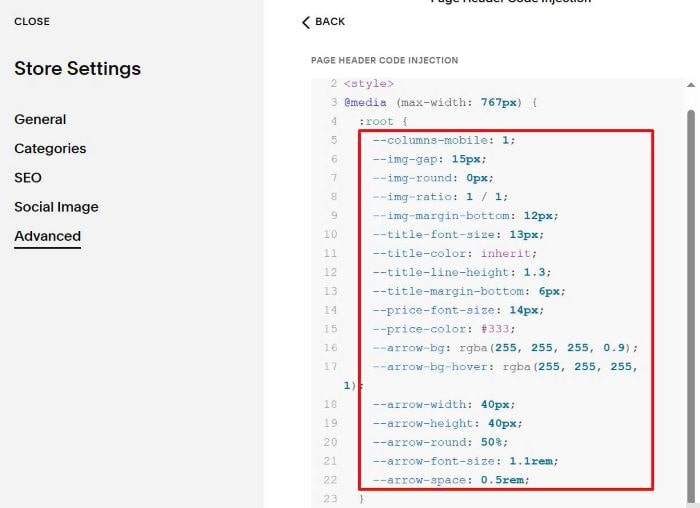
#2.2. To change number of items/row, change number 1 in this line
--columns-mobile: 1;
#2.3. To change gap between items (if you set 2 items/row)
--img-round: 0px;
#2.3. To change image ratio
--img-ratio: 1 / 1;
#2.4. To adjust space under image
--img-margin-bottom: 12px;
#2.5. To change Product Title text size
--title-font-size: 13px;
#2.6. To change Product Title Color, you can change inherit to a hex color
--title-color: inherit;
something like this
--title-color: #f1f;
#2.7. To change Product Title line spacing/space under title
--title-line-height: 1.3;
--title-margin-bottom: 6px;
#2.8. To change Product Price text size/color
--price-font-size: 14px; --price-color: #333;
#2.9. To change arrows color (top is background color, bottom is hover background color)
--arrow-bg: rgba(255, 255, 255, 0.9); --arrow-bg-hover: rgba(255, 255, 255, 1);
#2.10. To change arrows size
--arrow-width: 40px; --arrow-height: 40px;
#2.11. To rounded corners of arrow
--arrow-round: 50%;
you can also use fixed value, like this
--arrow-round: 5px;
#2.12. To change arrows icon size + space between arrows icon + circle border
--arrow-font-size: 1.1rem; --arrow-space: 0.5rem;