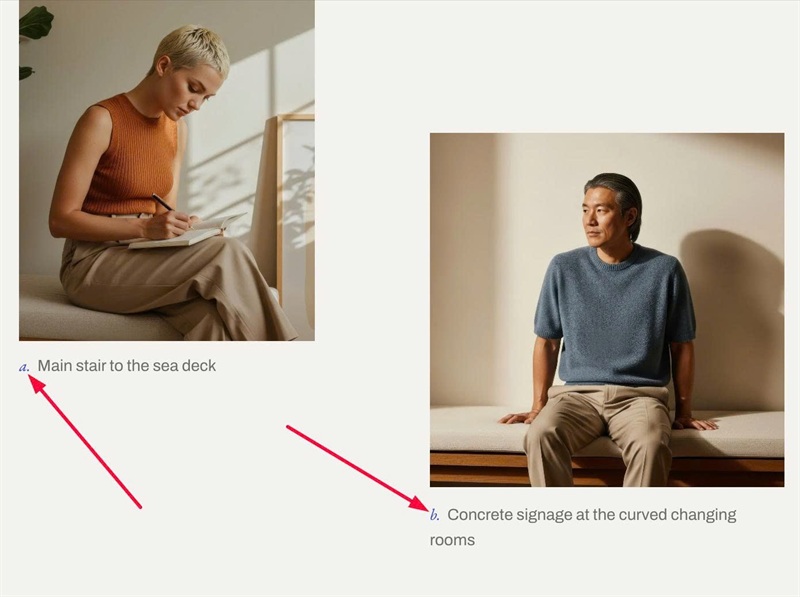
List Section forces every image into the same aspect ratio and the same column width. This CSS turns two items into an editorial pair: a narrower portrait image on the left and a wider square image on the right, pushed down for a staggered look, with “a.” / “b.” captions.
#1. Install Code
#1.1. First, add List Simple
#1.2. Enable these
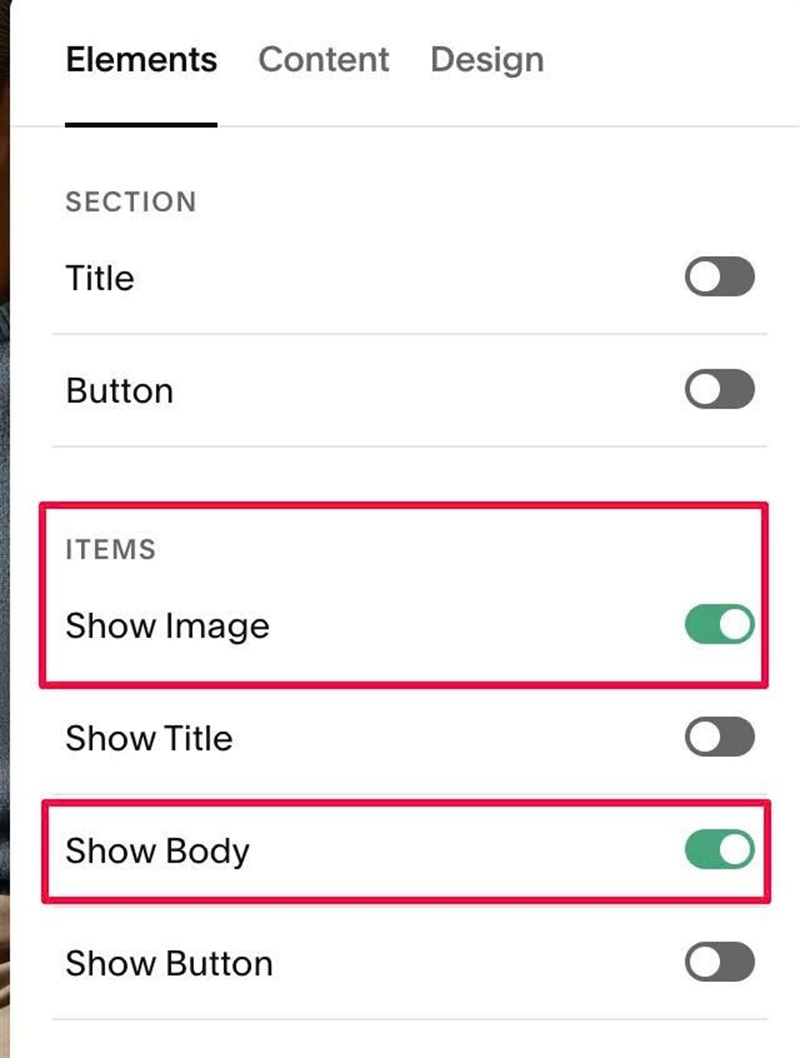
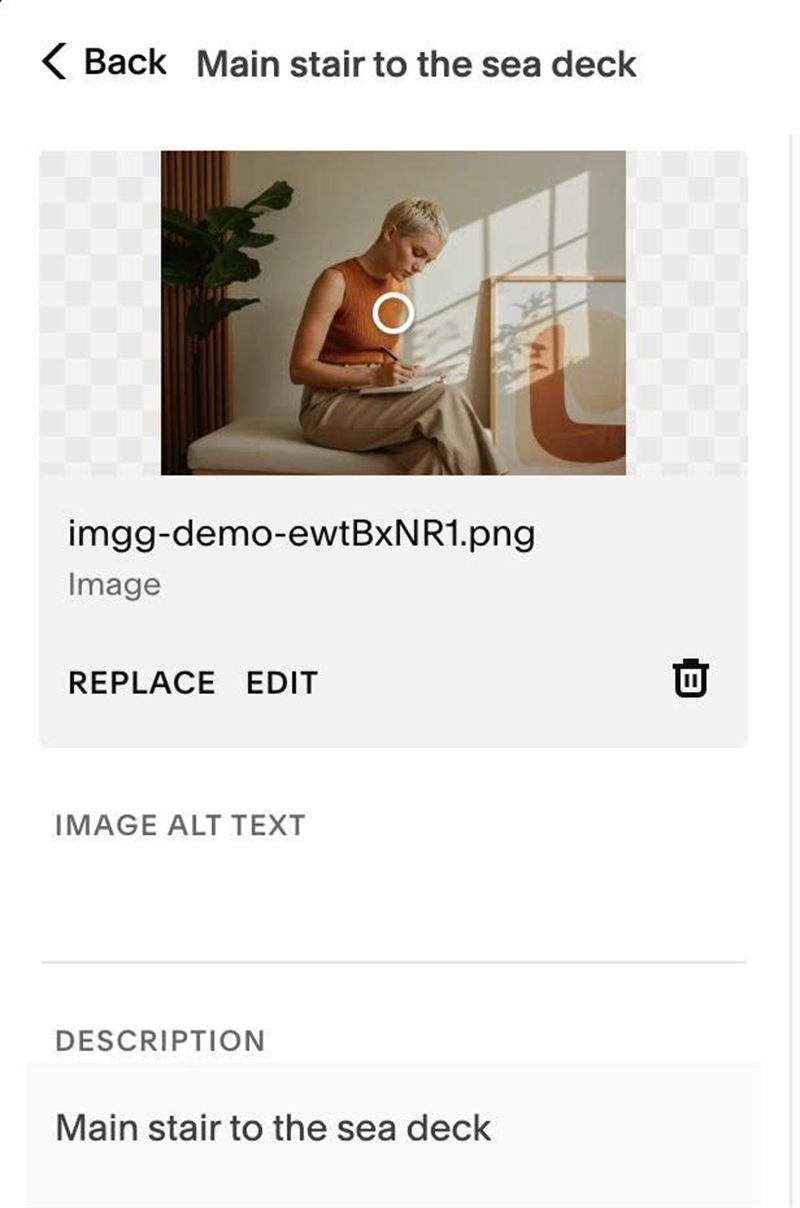
#1.3. Add your desired text/image
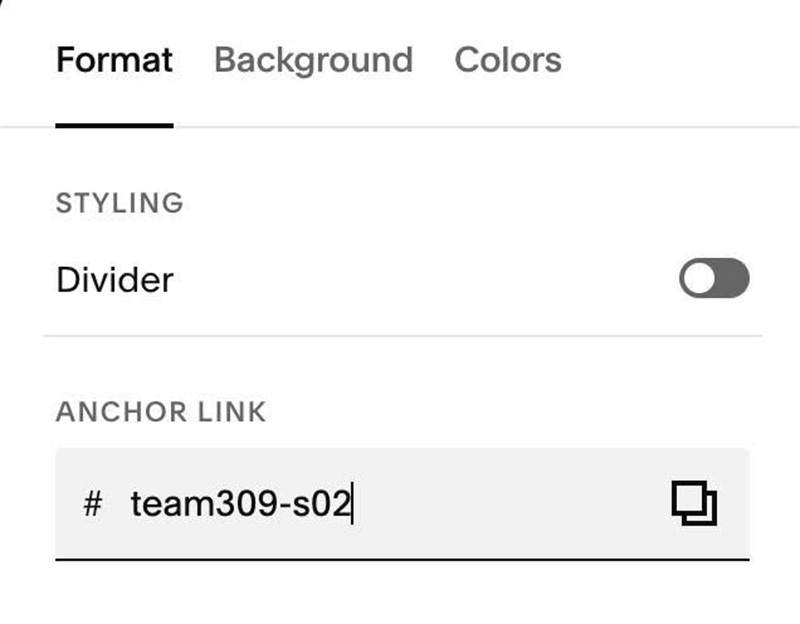
#1.4. Hover on top right of section > Click EDIT SECTION > at Format > Anchor Link > enter word: team309-s02
#1.5. Next, use this code to Custom CSS
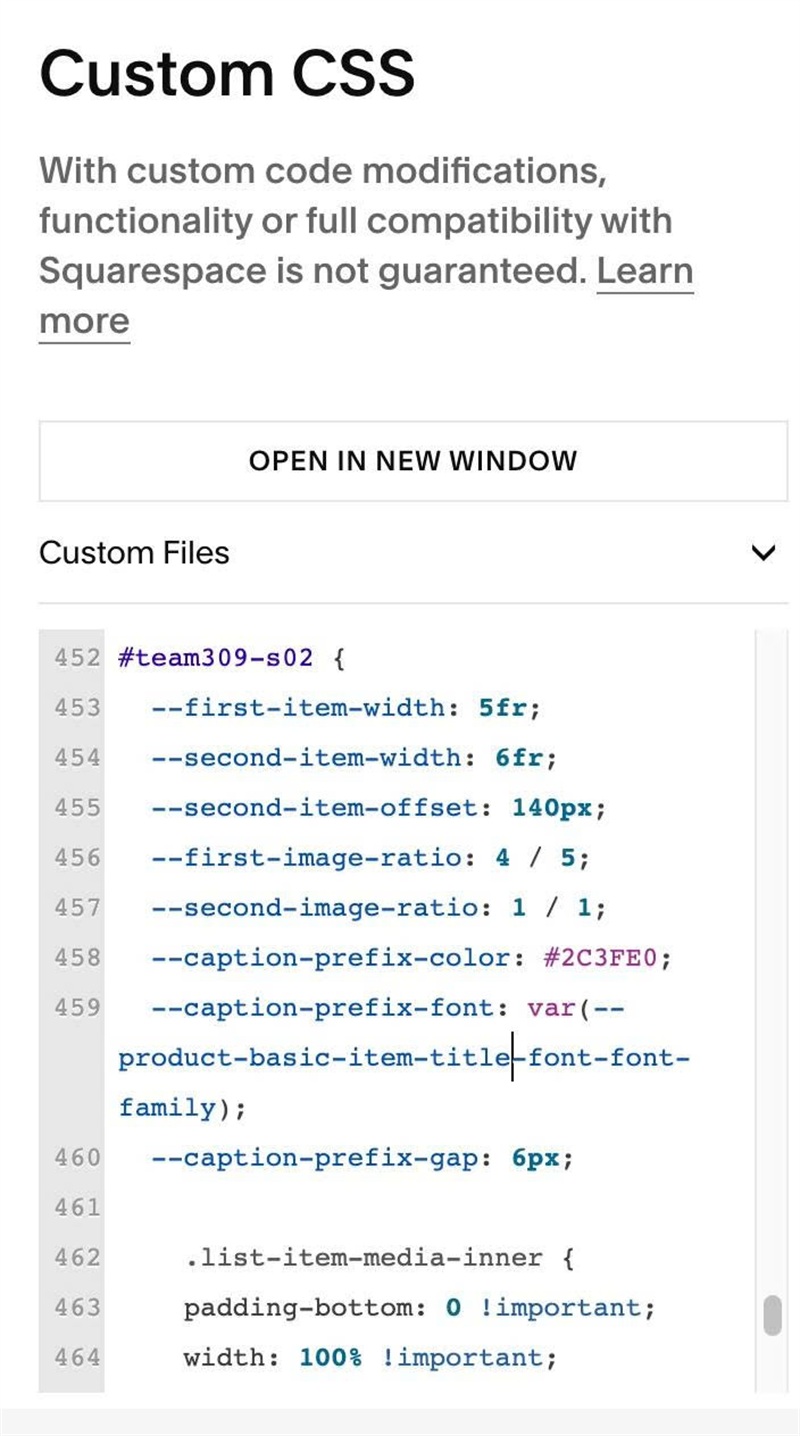
#team309-s02 {
  --first-item-width: 5fr;
  --second-item-width: 6fr;
  --second-item-offset: 140px;
  --first-image-ratio: 4 / 5;
  --second-image-ratio: 1 / 1;
  --caption-prefix-color: #2C3FE0;
  --caption-prefix-font: var(--product-basic-item-title-font-font-family);
  --caption-prefix-gap: 6px;

    .list-item-media-inner {
    padding-bottom: 0 !important;
    width: 100% !important;
    height: auto !important;
  }
  .list-item:nth-child(1) .list-item-media-inner {
    aspect-ratio: var(--first-image-ratio);
  }
  .list-item:nth-child(2) .list-item-media-inner {
    aspect-ratio: var(--second-image-ratio);
  }
  .list-item-content__description p::before {
    font-family: var(--caption-prefix-font);
    font-style: italic;
    color: var(--caption-prefix-color);
    margin-right: var(--caption-prefix-gap);
  }
  .list-item:nth-child(1) .list-item-content__description p::before {
    content: "a.";
  }
  .list-item:nth-child(2) .list-item-content__description p::before {
    content: "b.";
  }
  @media (min-width: 768px) {
    .user-items-list-item-container {
      grid-template-columns: minmax(0, var(--first-item-width)) minmax(0, var(--second-item-width)) !important;
      align-items: start;
    }
    .list-item:nth-child(2) {
      margin-top: var(--second-item-offset);
    }
  }
}
#1.6. Customize
To change width of First, Second items, edit this
--first-item-width: 5fr;
  --second-item-width: 6fr;
To move Second Item down a bit, change this
--second-item-offset: 140px;
To change ratio of 2 images, edit this
--first-image-ratio: 4 / 5;
  --second-image-ratio: 1 / 1;
To change color of word: a, b..
--caption-prefix-color: #2C3FE0;