Want your banner slideshow to rotate on its own with a smooth fade and slow zoom, like a hero video? Paste this code, set autoScrollSeconds, and choose fade or slideDown. Every feature can be turned on or off in the options.

#1. Install Code
#1.1. First, you need to add a List Banner Slideshow
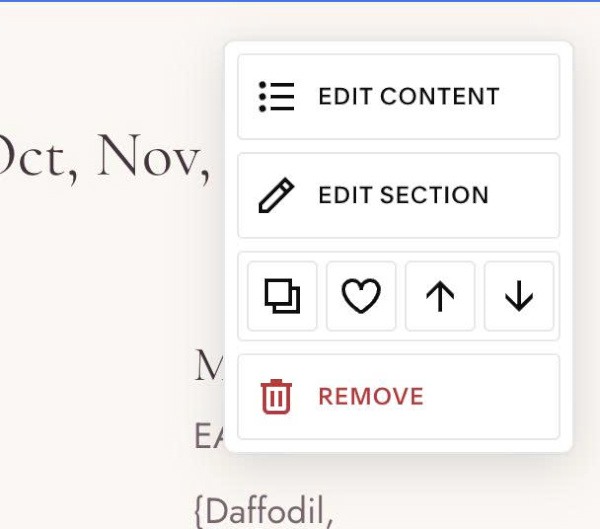
#1.2. Hover on top right of slideshow > Click EDIT SECTION
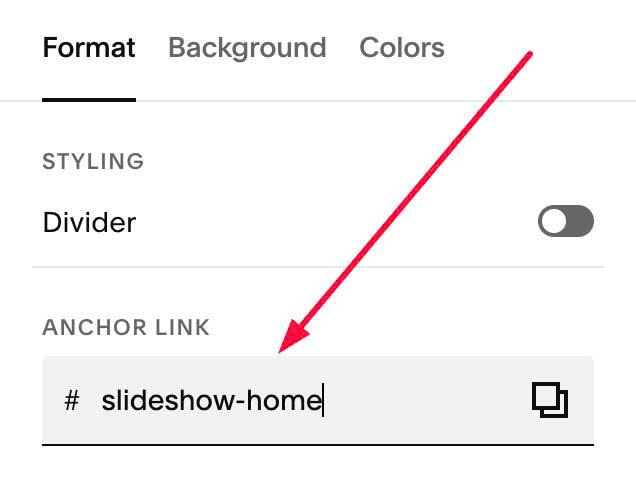
#1.3. at Format > Anchor Link > enter word: slideshow-home
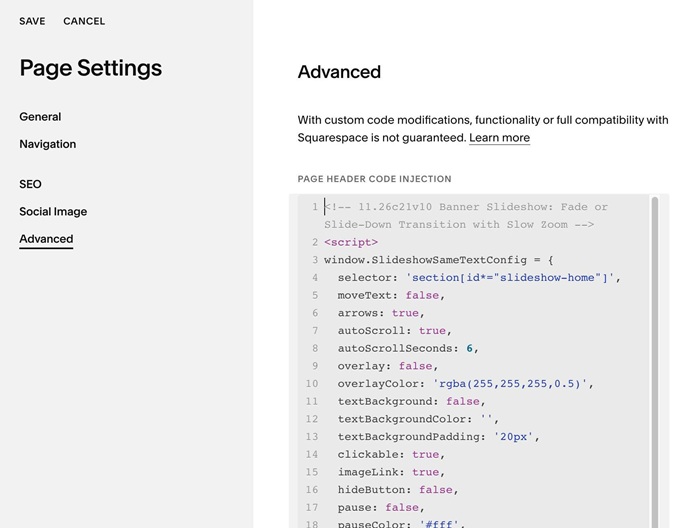
#1.4. Hover on Page where you use Slideshow > Click Gear icon > Click Advanced > Paste this code
- If you use Personal/Basic Plan, see #3.1
<!-- 11.26c21v10 Banner Slideshow: Fade or Slide-Down Transition with Slow Zoom -->
<script>
window.SlideshowSameTextConfig = {
  selector: 'section[id*="slideshow-home"]',
  moveText: false,
  arrows: true,
  autoScroll: true,
  autoScrollSeconds: 6,
  overlay: false,
  overlayColor: 'rgba(255,255,255,0.5)',
  textBackground: false,
  textBackgroundColor: '',
  textBackgroundPadding: '20px',
  clickable: true,
  imageLink: true,
  hideButton: false,
  pause: false,
  pauseColor: '#fff',
  pauseSize: '50px',
  pauseRight: '10px',
  pauseBottom: '10px',
  changeArrowStyle: true,
  fadeZoom: true,
  transitionType: 'fade',
  transitionSeconds: 0.5,
  zoomScale: 1,
  zoomSeconds: 20,
  zoomDirection: 'in'
};
</script>
<script src="https://code.beaverhero.com/listbannerslideshow/1126c21v10fadeslideshow.js"></script>
#2. Customize
#2.1. Slideshow will rotate every 6 seconds, you can adjust it here
autoScroll: true,
autoScrollSeconds: 6,
to disable auto rotate, set true to false
#2.2. To keep same text for every slideshow image, you can add text to First Slideshow Item, then change this code
moveText: false,
to
moveText: true,
#2.3. To set zoom effect on Slideshow image, change this option
zoomScale: 1,
 zoomSeconds: 20,
 zoomDirection: 'in'
to
zoomScale: 1.1,
 zoomSeconds: 20,
 zoomDirection: 'in' // in or out
#2.4. To enable Pause auto rotate icon, you can set this to true
pause: false,
#2.5. Slideshow offers 2 type of transition: fade or slideshow, you can adjust this line
transitionType: 'fade', //fade or slideDown
#2.6. To keep default arrow style of Banner Slideshow, set this to false
changeArrowStyle: true,
#2.7. And other options, you can find in Line 04 – Line 28
selector: 'section[id*="slideshow-home"]',
moveText: false,
arrows: true,
autoScroll: true,
autoScrollSeconds: 6,
overlay: false,
overlayColor: 'rgba(255,255,255,0.5)',
textBackground: false,
textBackgroundColor: '',
textBackgroundPadding: '20px',
clickable: true,
imageLink: true,
hideButton: false,
pause: false,
pauseColor: '#fff',
pauseSize: '50px',
pauseRight: '10px',
pauseBottom: '10px',
changeArrowStyle: true,
fadeZoom: true,
transitionType: 'fade',
transitionSeconds: 0.5,
zoomScale: 1,
zoomSeconds: 20,
zoomDirection: 'in'
#3. Other
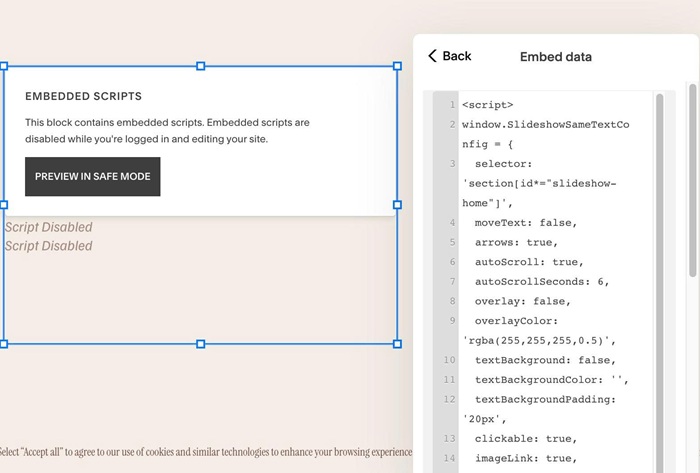
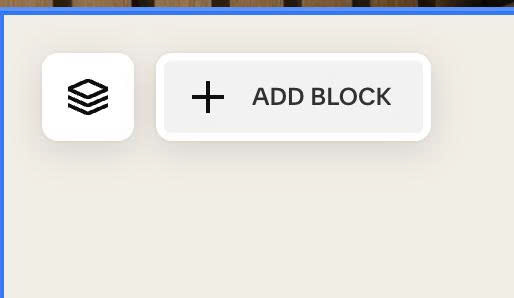
#3.1. If you use Personal/Basic Plan and your plan doesn’t support Injection, you can edit Current Page > Add a Block (anywhere on current page)
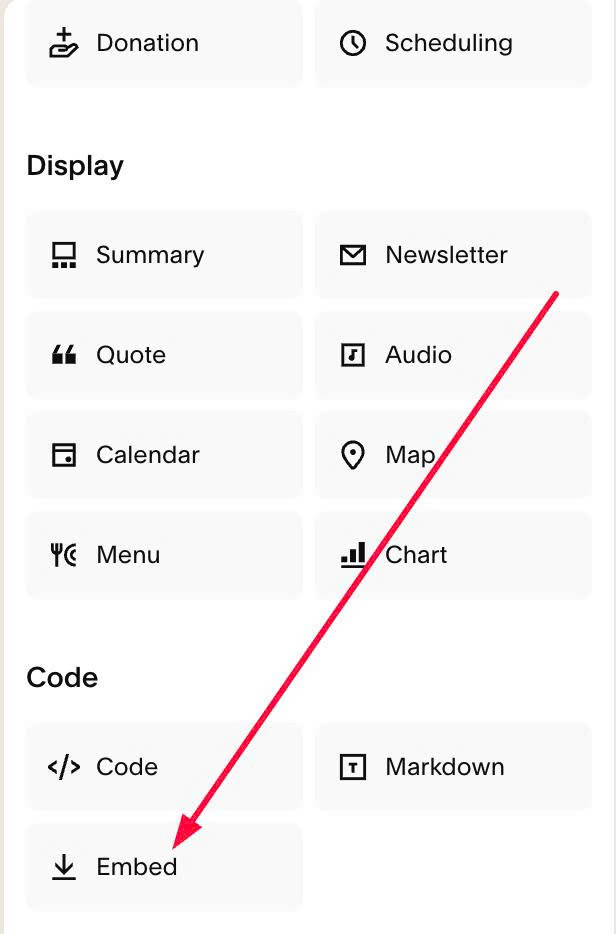
Choose Embed Block
Click Code Snippet > Embed Data
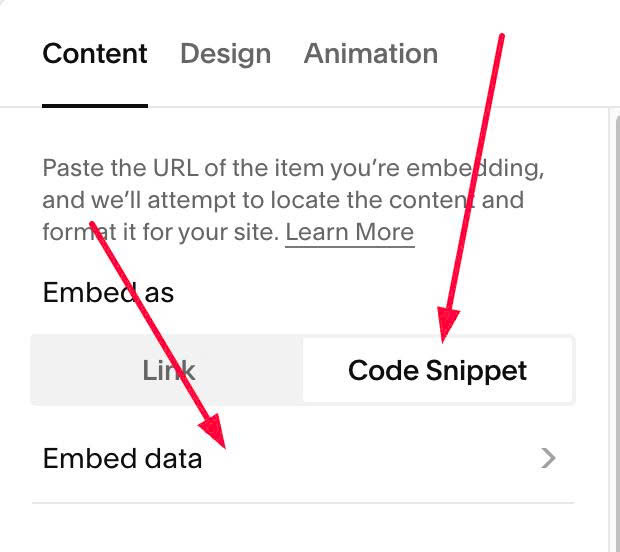
Add this code
<script>
window.SlideshowSameTextConfig = {
  selector: 'section[id*="slideshow-home"]',
  moveText: false,
  arrows: true,
  autoScroll: true,
  autoScrollSeconds: 6,
  overlay: false,
  overlayColor: 'rgba(255,255,255,0.5)',
  textBackground: false,
  textBackgroundColor: '',
  textBackgroundPadding: '20px',
  clickable: true,
  imageLink: true,
  hideButton: false,
  pause: false,
  pauseColor: '#fff',
  pauseSize: '50px',
  pauseRight: '10px',
  pauseBottom: '10px',
  changeArrowStyle: true,
  fadeZoom: true,
  transitionType: 'fade',
  transitionSeconds: 0.5,
  zoomScale: 1,
  zoomSeconds: 20,
  zoomDirection: 'in'
};
</script>
<script src="https://code.beaverhero.com/listbannerslideshow/1126c21v10fadeslideshow.js"></script>