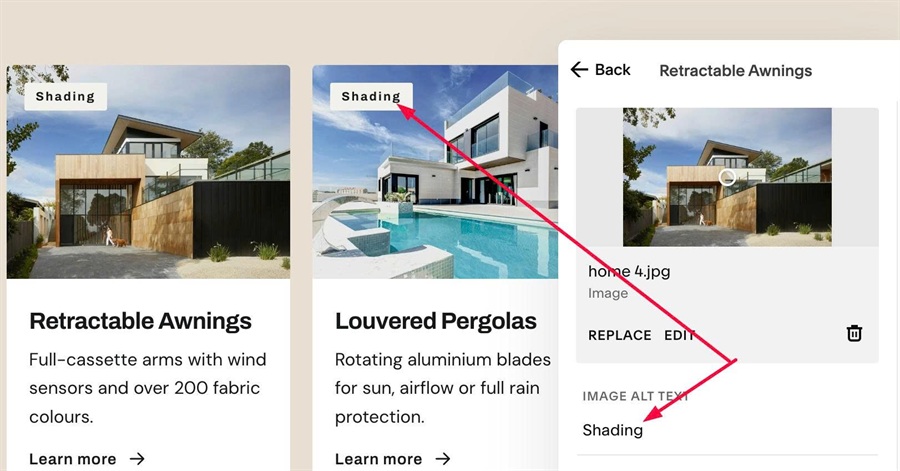
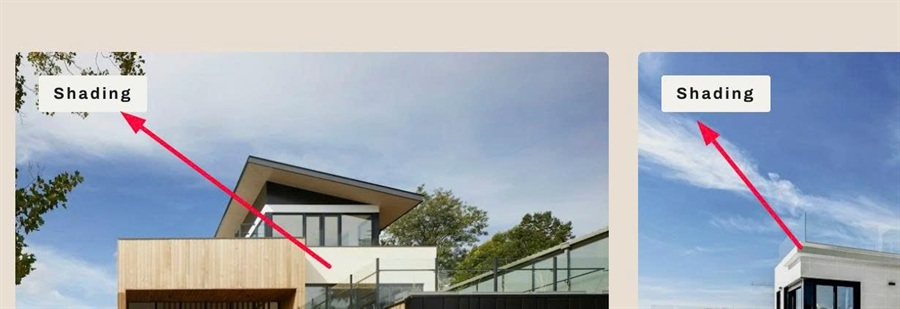
List Section can’t show a badge on the image, and only the button is clickable. This code uses each image’s ALT text as a label on the image (e.g. “NEW”, “BEST SELLER”), makes the image fill the card edge to edge, and makes the whole card clickable with a lift on hover.
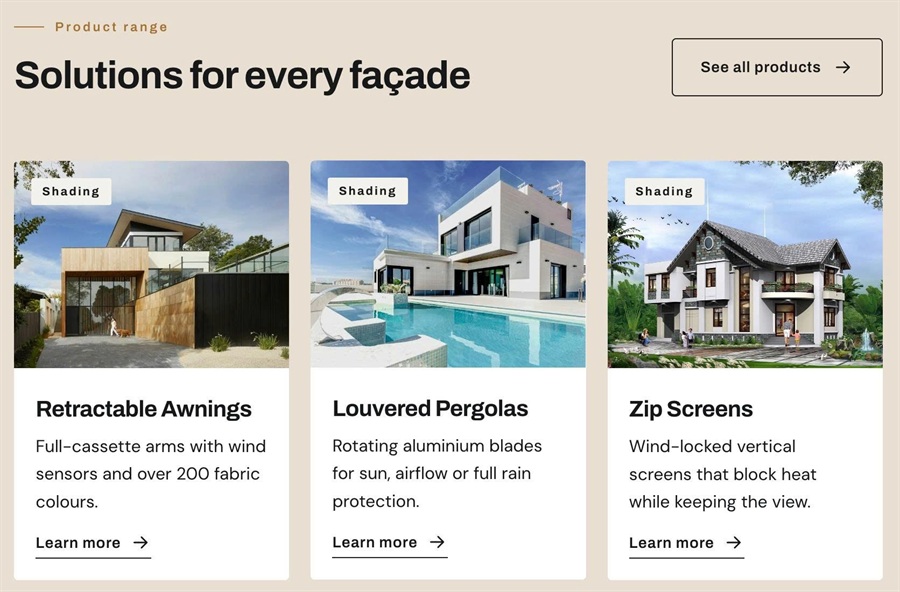
#1. Install Code
#1.1. You need to add List Simple
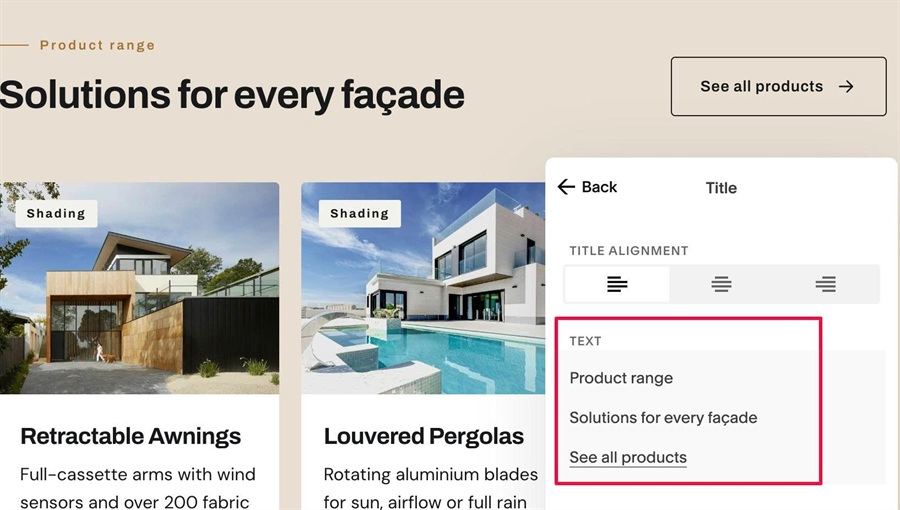
#1.2. Edit Section Title > Type your desired text
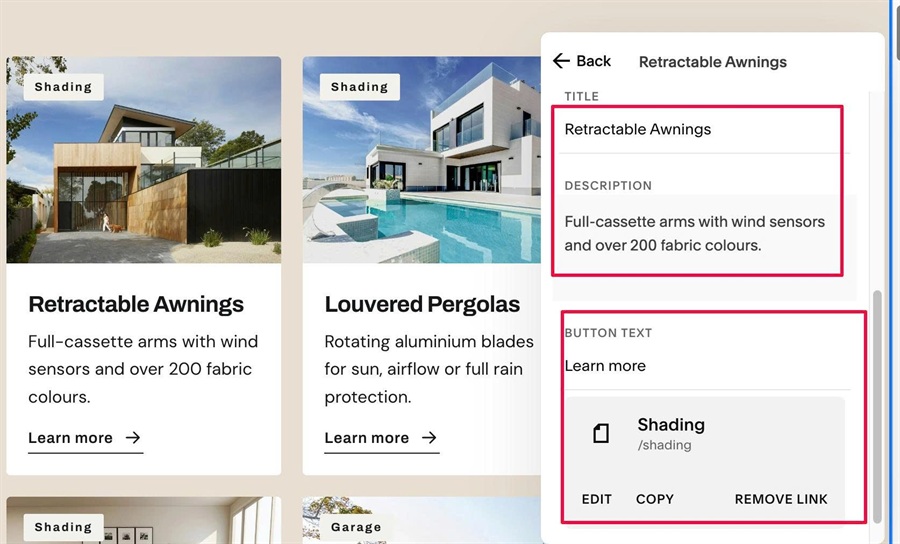
#1.3. Edit each item > Upload Image + ALT
and item title, description, button text, button url
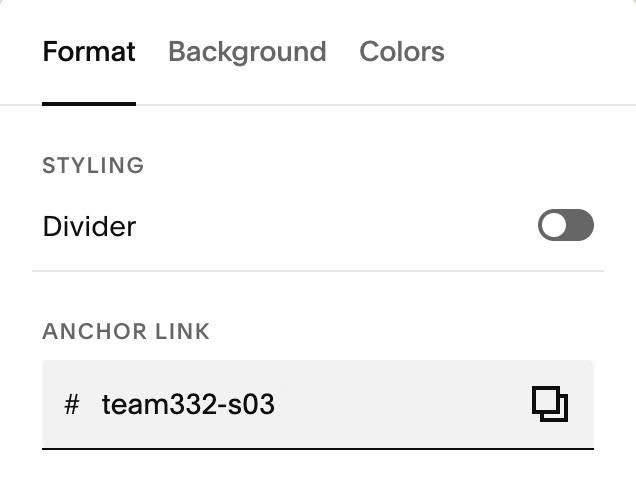
#1.4. Hover on top right of List > Click EDIT SECTION > at Format > Anchor Link > enter word: team332-s03
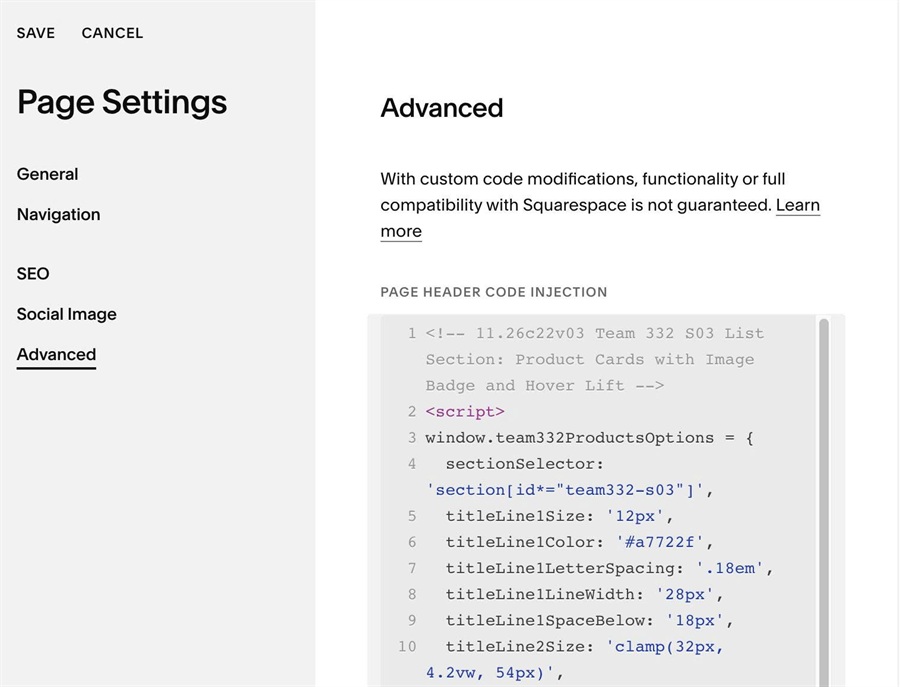
#1.5. Next, use this code to Page Header Injection
<!-- 11.26c22v03 Team 332 S03 List Section: Product Cards with Image Badge and Hover Lift -->
<script>
window.team332ProductsOptions = {
  sectionSelector: 'section[id*="team332-s03"]',
  titleLine1Size: '12px',
  titleLine1Color: '#a7722f',
  titleLine1LetterSpacing: '.18em',
  titleLine1LineWidth: '28px',
  titleLine1SpaceBelow: '18px',
  titleLine2Size: 'clamp(32px, 4.2vw, 54px)',
  sectionButtonFontSize: '14px',
  sectionButtonPadding: '16px 26px',
  sectionButtonRadius: '4px',
  sectionButtonColor: '#16191b',
  sectionButtonHoverBackgroundColor: '#16191b',
  sectionButtonHoverTextColor: '#f4f1eb',
  sectionButtonArrow: true,
  cardRadius: '4px',
  cardHoverLift: '6px',
  cardHoverShadow: '0 24px 50px rgba(22,25,27,.12)',
  imageFullWidth: true,
  imageHoverZoom: '1.05',
  showImageLabel: true,
  imageLabelSize: '11px',
  imageLabelLetterSpacing: '.14em',
  imageLabelBackgroundColor: '#f4f1eb',
  imageLabelTextColor: '#16191b',
  imageLabelPadding: '6px 10px',
  imageLabelRadius: '2px',
  imageLabelOffset: '16px',
  buttonColor: '#16191b',
  buttonLineWidth: '1px',
  buttonArrow: true,
  wholeCardClickable: true
};
</script>
<script src="https://code.beaverhero.com/listsimple/1126c22v03team332s03.js"></script>
#1.6. Customize
You can customize it in Design > Style, Size & Space or Site Styles. Here are some other styles.
To change style of Section Title (First, Second Lines), Button, edit this
titleLine1Size: '12px',
  titleLine1Color: '#a7722f',
  titleLine1LetterSpacing: '.18em',
  titleLine1LineWidth: '28px',
  titleLine1SpaceBelow: '18px',
  titleLine2Size: 'clamp(32px, 4.2vw, 54px)',
  sectionButtonFontSize: '14px',
  sectionButtonPadding: '16px 26px',
  sectionButtonRadius: '4px',
  sectionButtonColor: '#16191b',
  sectionButtonHoverBackgroundColor: '#16191b',
  sectionButtonHoverTextColor: '#f4f1eb',
  sectionButtonArrow: true,

To change style of Label (Image ALT), edit this
imageLabelSize: '11px',
  imageLabelLetterSpacing: '.14em',
  imageLabelBackgroundColor: '#f4f1eb',
  imageLabelTextColor: '#16191b',
  imageLabelPadding: '6px 10px',
  imageLabelRadius: '2px',
  imageLabelOffset: '16px',
To change style of Learn more button, edit this
buttonColor: '#16191b',
  buttonLineWidth: '1px',
  buttonArrow: true,