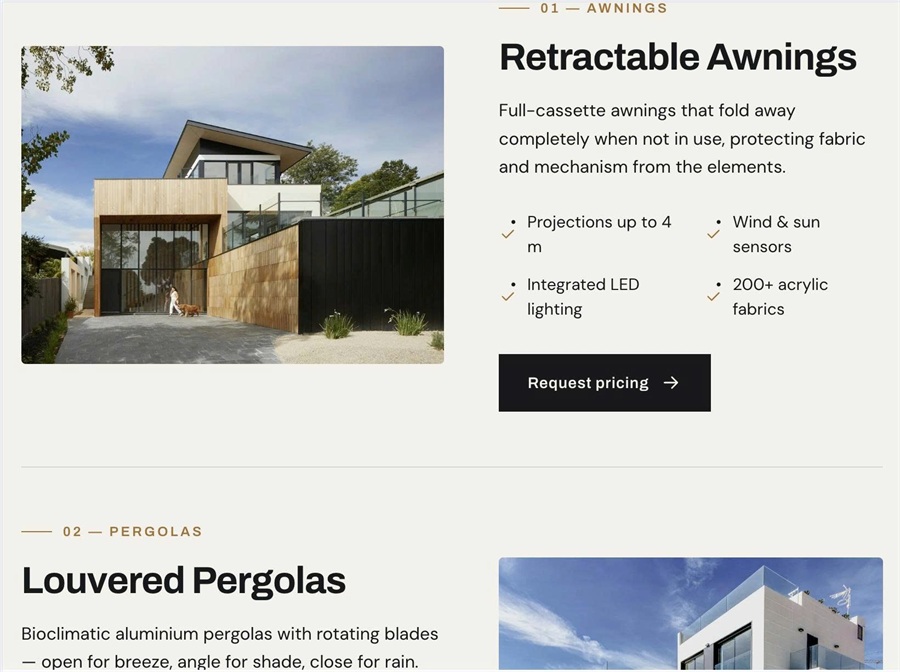
Squarespace’s Simple List always stacks the image above the text, with no option to place them side by side or alternate left and right. This code turns each item into a full-width row with the image on one side and the content on the other, flipping every other row.
#1. Install Code
#1.1. First, add a List Simple with 4 items
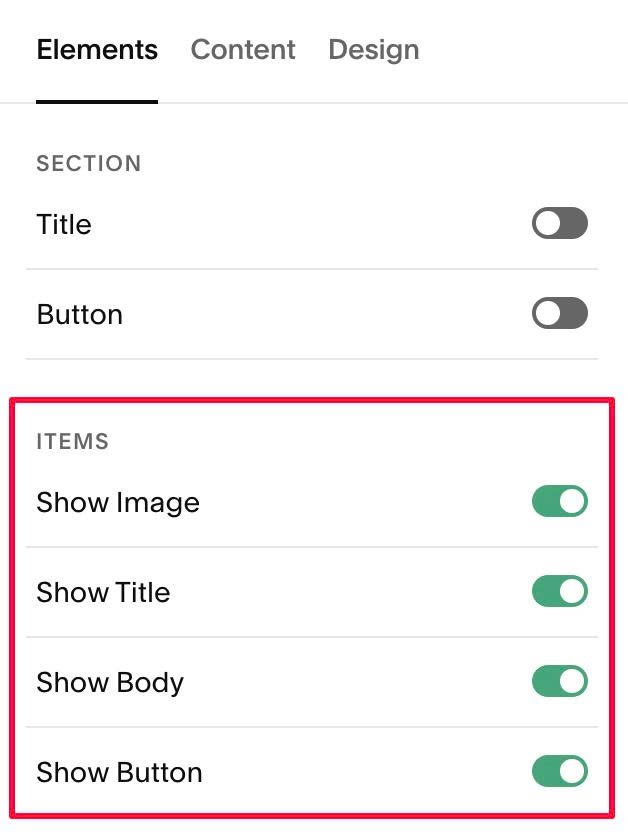
#1.2. Enable these
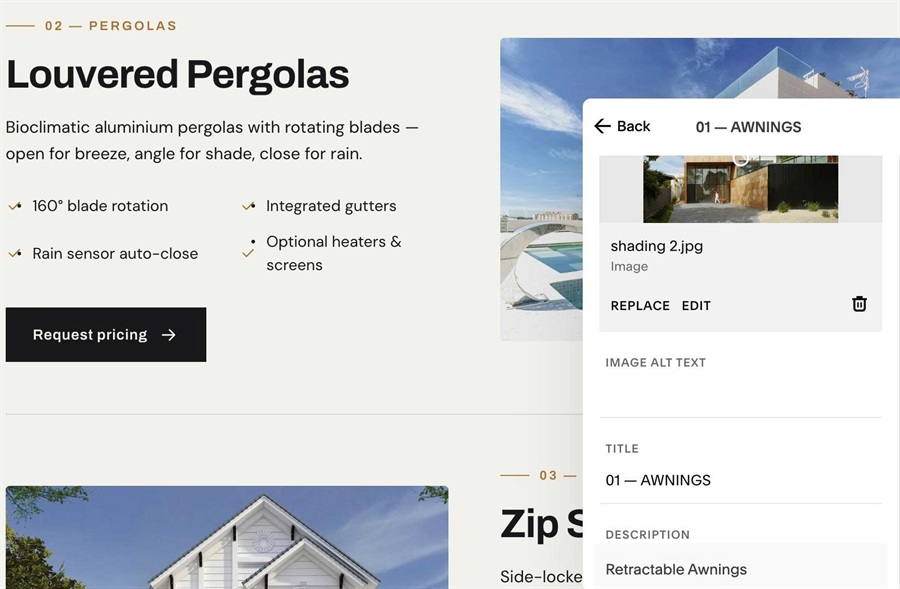
#1.3. Edit each item > enter image, title, description, button
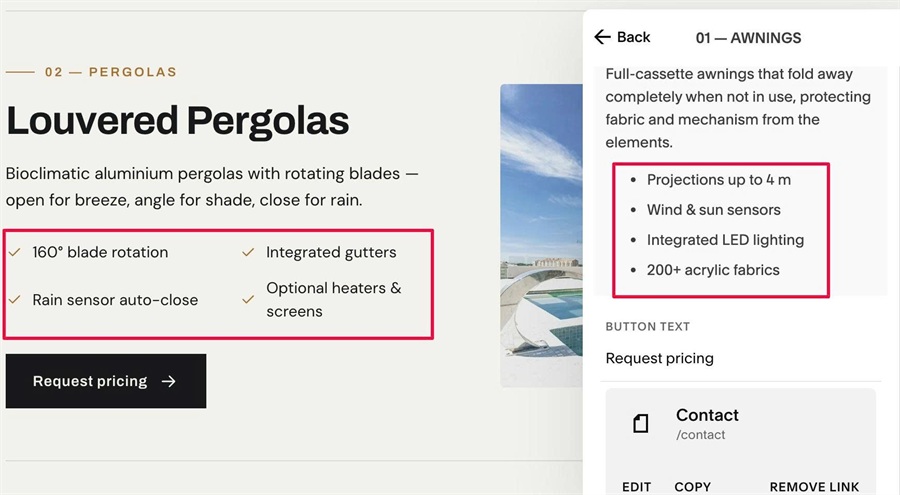
Using Unordered List in Item Description then code will turn it to 2 columns with icons
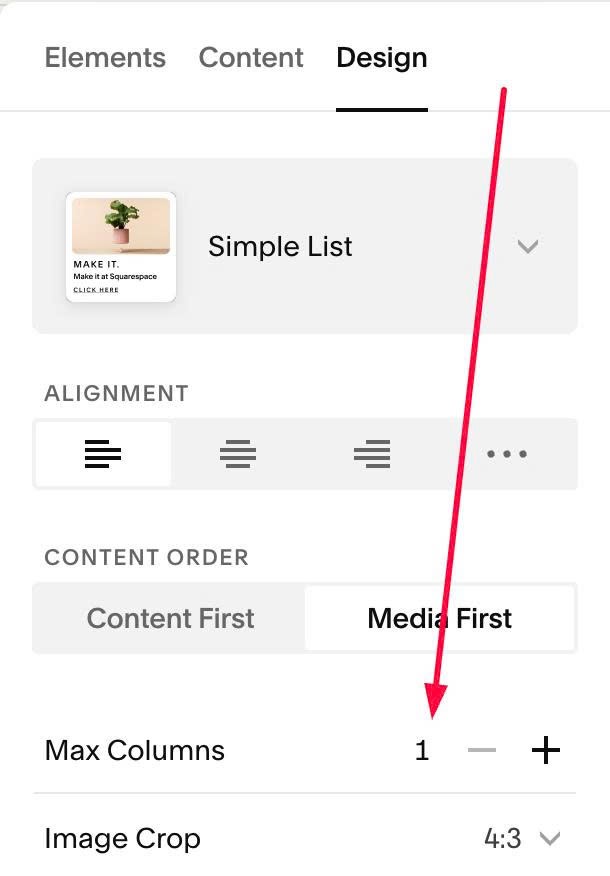
#1.4. Set it to 1 column
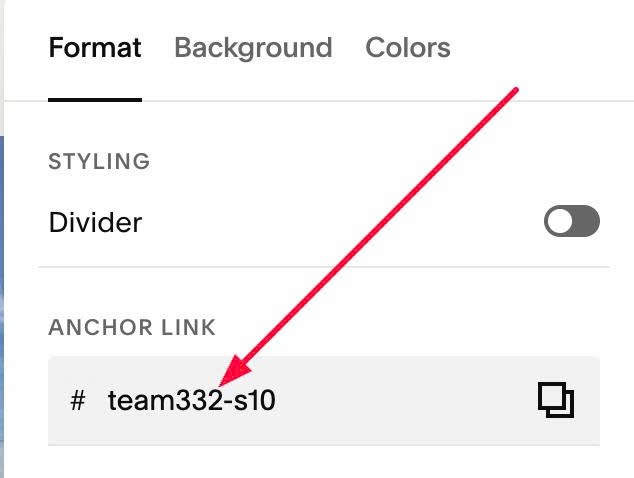
#1.5. Hover on top right of section > Click EDIT SECTION > at Format > Anchor Link > enter word: team332-s10
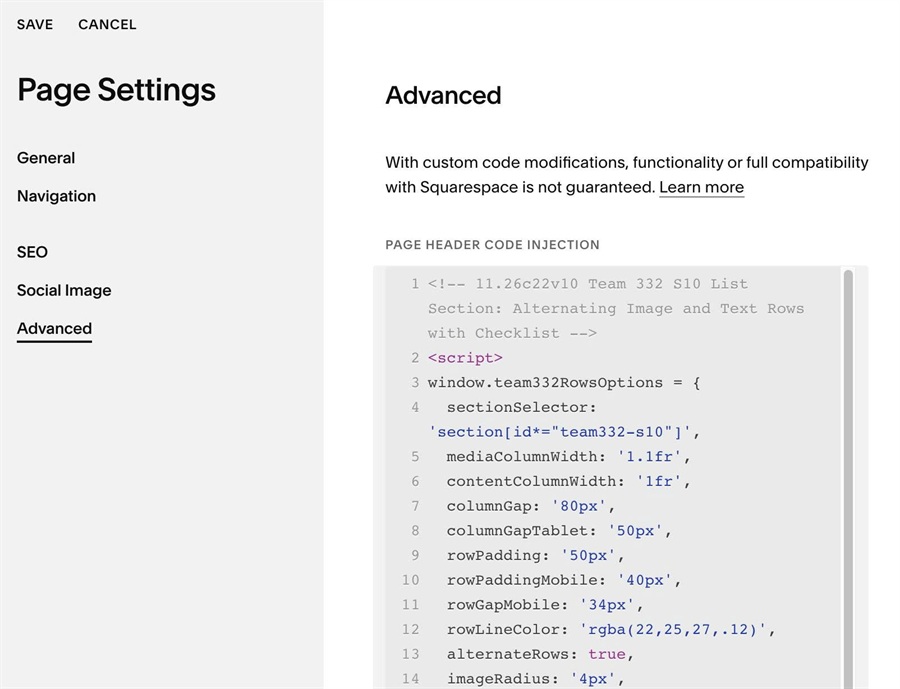
#1.6. Use code to Page Header Injection
<!-- 11.26c22v10 Team 332 S10 List Section: Alternating Image and Text Rows with Checklist -->
<script>
window.team332RowsOptions = {
  sectionSelector: 'section[id*="team332-s10"]',
  mediaColumnWidth: '1.1fr',
  contentColumnWidth: '1fr',
  columnGap: '80px',
  columnGapTablet: '50px',
  rowPadding: '50px',
  rowPaddingMobile: '40px',
  rowGapMobile: '34px',
  rowLineColor: 'rgba(22,25,27,.12)',
  alternateRows: true,
  imageRadius: '4px',
  itemTitleColor: '#a7722f',
  itemTitleLetterSpacing: '.18em',
  itemTitleLineWidth: '28px',
  itemLine1Size: 'clamp(32px, 4.2vw, 54px)',
  itemLine1Color: '#16191b',
  itemLine2SpaceAbove: '18px',
  listSpaceAbove: '26px',
  listColumns: 2,
  listRowGap: '12px',
  listColumnGap: '24px',
  listIconSize: '16px',
  listIconColor: '#a7722f',
  listIconGap: '10px',
  listTextSize: '15px',
  buttonBackgroundColor: '#16191b',
  buttonTextColor: '#f4f1eb',
  buttonHoverBackgroundColor: '#c58d45',
  buttonHoverTextColor: '#16191b',
  buttonArrow: true
};
</script>
<style>section[id*="team332-s10"] li p:before {display: none !important;}</style><script src="https://code.beaverhero.com/listsimple/1126c22v10team332s10.js"></script>
#1.7. Customize
To change Image, Text Column Width, Gap between Both, edit this
mediaColumnWidth: '1.1fr',
 contentColumnWidth: '1fr',
 columnGap: '80px',
 columnGapTablet: '50px',
To change line color between items, edit this
rowLineColor: 'rgba(22,25,27,.12)',
To change Item Title style & Line on left of item title, edit this
itemTitleColor: '#a7722f',
itemTitleLetterSpacing: '.18em',
itemTitleLineWidth: '28px',
itemLine1Size: 'clamp(32px, 4.2vw, 54px)',
itemLine1Color: '#16191b',
itemLine2SpaceAbove: '18px',
To change Unordered List Icon + Text style, edit this
listIconSize: '16px',
  listIconColor: '#a7722f',
  listIconGap: '10px',
  listTextSize: '15px',
To change item button style, edit this
buttonBackgroundColor: '#16191b',
  buttonTextColor: '#f4f1eb',
  buttonHoverBackgroundColor: '#c58d45',
  buttonHoverTextColor: '#16191b',
  buttonArrow: true