- Support: [email protected]
- View Demo – Password: abc
- Buy me a coffee if it is helpful
Description: turn list section to tabs pricing
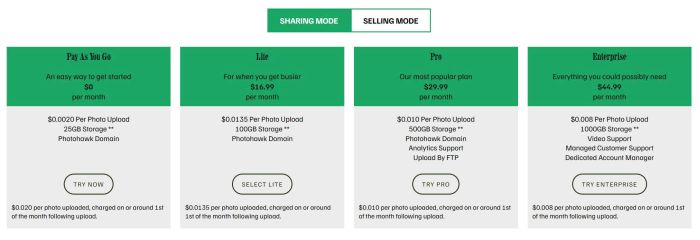
#1. Install Code
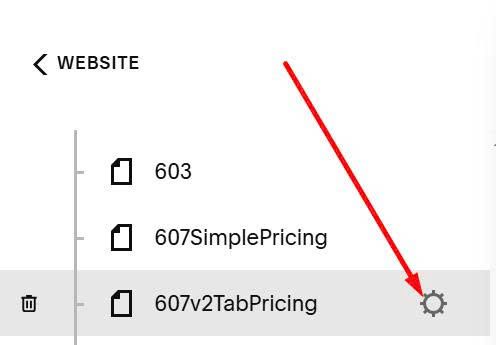
Hover on page where you will use Tabs Pricing > Click Gear icon
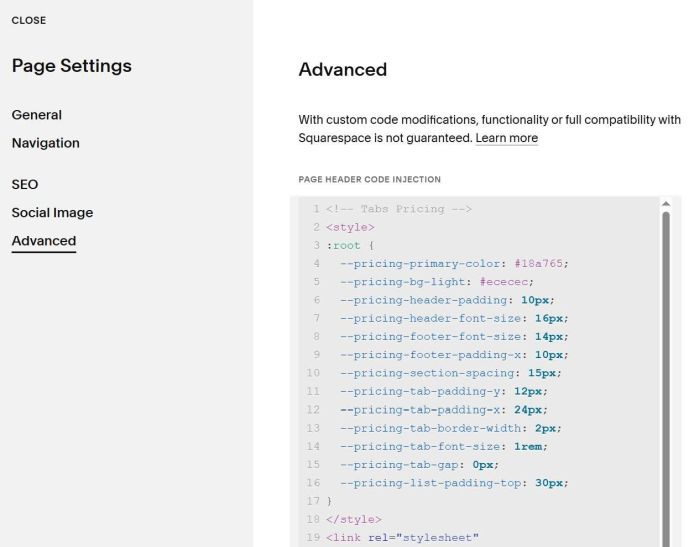
Click Advanced > Paste this code
<!-- Tabs Pricing -->
<style>
:root {
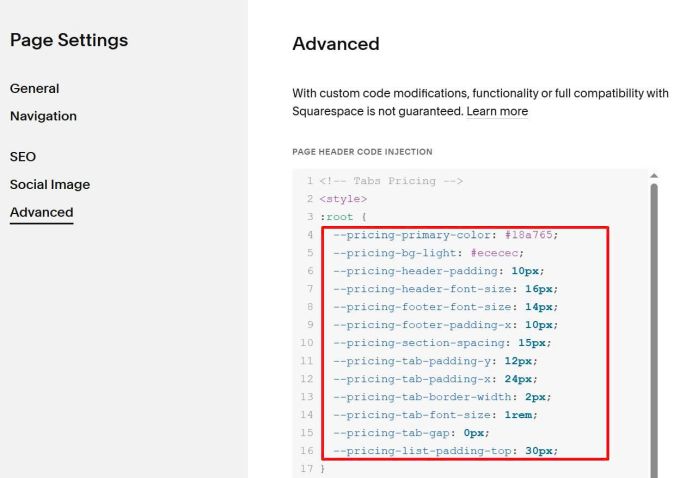
  --pricing-primary-color: #18a765;
  --pricing-bg-light: #ececec;
  --pricing-header-padding: 10px;
  --pricing-header-font-size: 16px;
  --pricing-footer-font-size: 14px;
  --pricing-footer-padding-x: 10px;
  --pricing-section-spacing: 15px;
  --pricing-tab-padding-y: 12px;
  --pricing-tab-padding-x: 24px;
  --pricing-tab-border-width: 2px;
  --pricing-tab-font-size: 1rem;
  --pricing-tab-gap: 0px;
  --pricing-list-padding-top: 30px;
}
</style>
<link rel="stylesheet" href="https://code.beaverhero.com/list/tabspricing.css"/>
<script src="https://code.beaverhero.com/list/tabspricing.js"></script>
#2. Usage
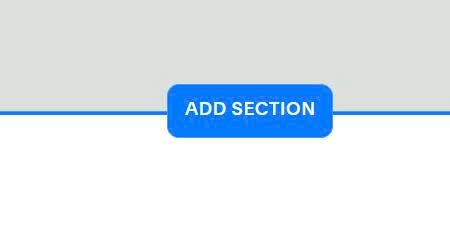
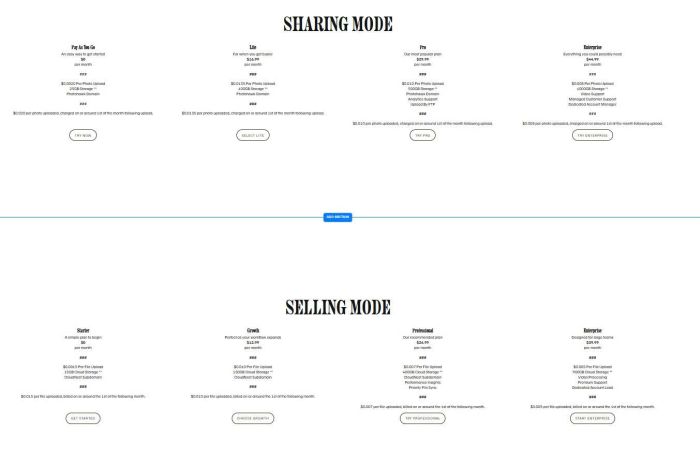
First, add a Section (you need to add 2 Sections)
Next, choose People > Choose section with (i) icon
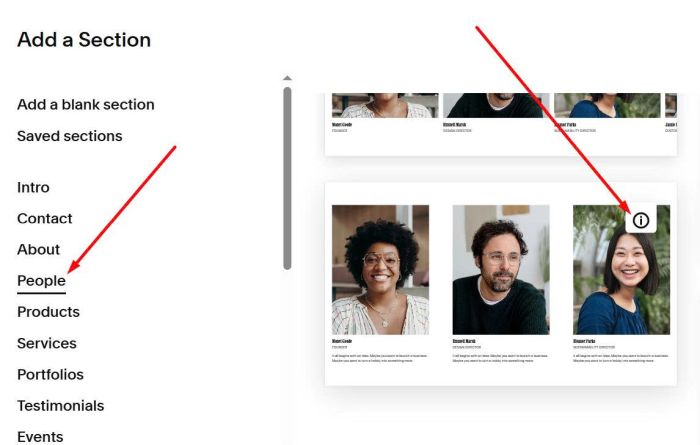
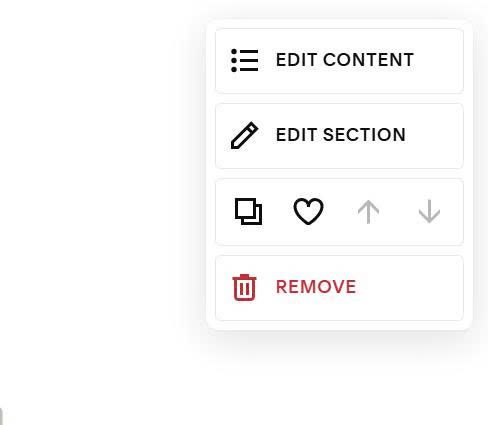
Next, hover on top right of section > Click Edit Content
Choose Simple List
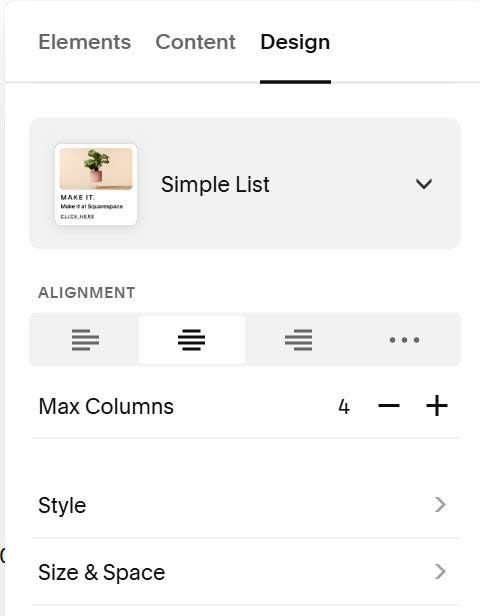
Enable these options

Then add your desired content. Make sure adding ## symbol
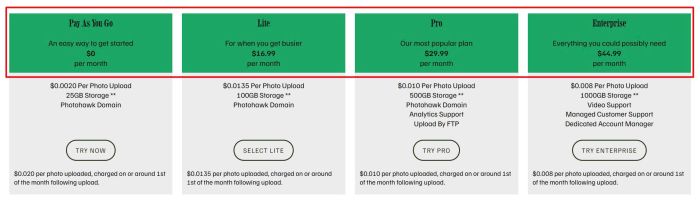
An easy way to get started
$0
per month

###

$0.0020 Per Photo Upload
25GB Storage **
Photohawk Domain

###

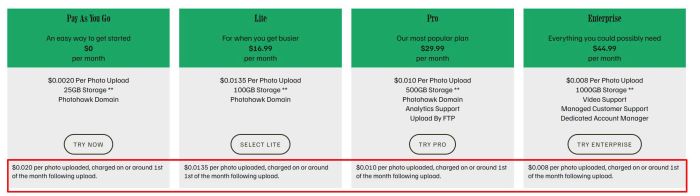
$0.020 per photo uploaded, charged on or around 1st of the month following upload.
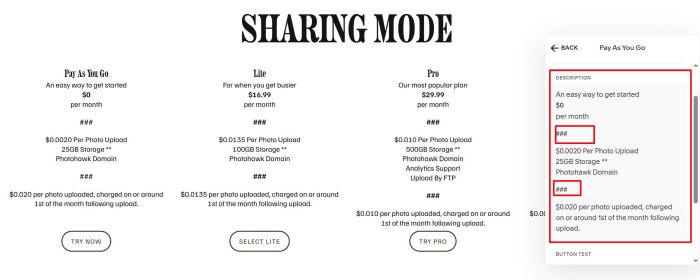
Content under ## will appear under Button
Content above ## will appear in green background
Repeat similar for both List Sections
Next, hover on top right of section > Click Edit Section
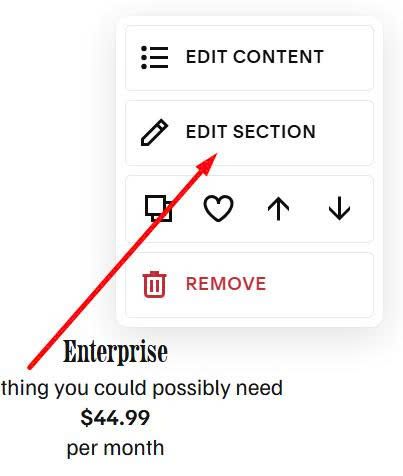
Enter word: list-tab-pricing01 at Anchor Link in First List Section
list-tab-pricing01
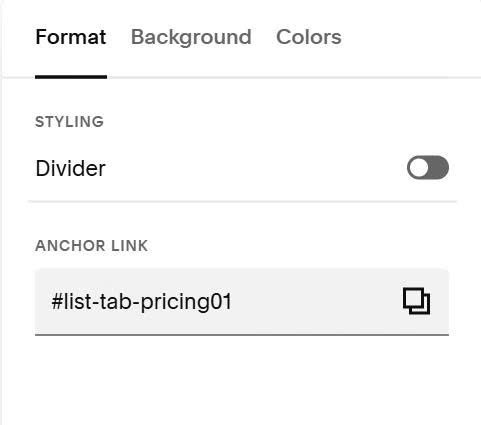
and enter word: list-tab-pricing02 at Anchor Link in Second List Section
list-tab-pricing02
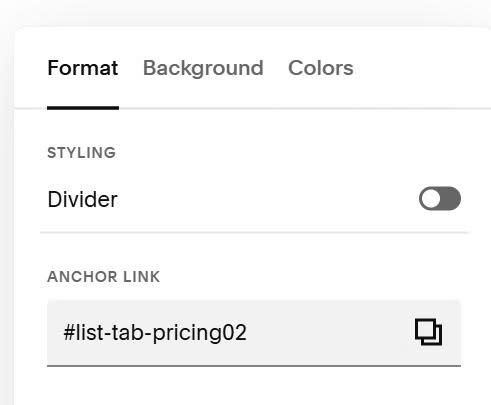
#3. Customize
All style options here (Line 04 to Line 16)
#3.1. To change these colors
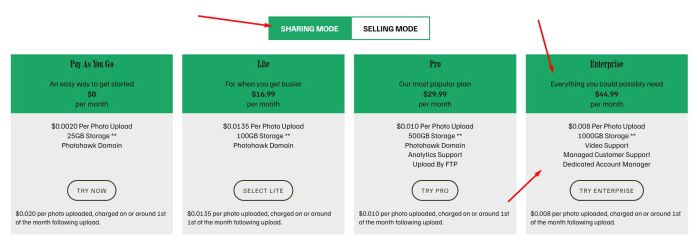
You can adjust Line 04 Line 05
--pricing-primary-color: #18a765;
--pricing-bg-light: #ececec;
#3.2. To change tab buttons style
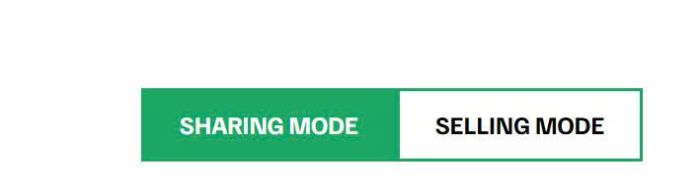
You can change Line 11 to Line 15
--pricing-tab-padding-y: 12px;
--pricing-tab-padding-x: 24px;
--pricing-tab-border-width: 2px;
--pricing-tab-font-size: 1rem;
--pricing-tab-gap: 0px;
#3.3. To change size of these text

You can change Line 07
--pricing-header-font-size: 16px;
#3.4. To change these text style

You can change Line 08 Line 09
--pricing-footer-font-size: 14px;
--pricing-footer-padding-x: 10px;
#3.5. If you can’t see List Section in Edit Mode to edit it, you can access Safe Mode, add /config/after your site url, something like this
https://tuanphan-demo.squarespace.com/config/safe