Description
- testimonial carousel with Team section
- view demo – password: abc
- my friend code this, send her a coffee

#1. Install Code
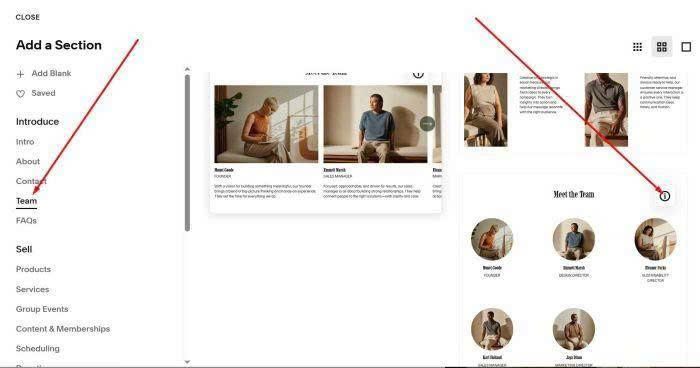
#1.1. First, you need to add a Team (List) Section
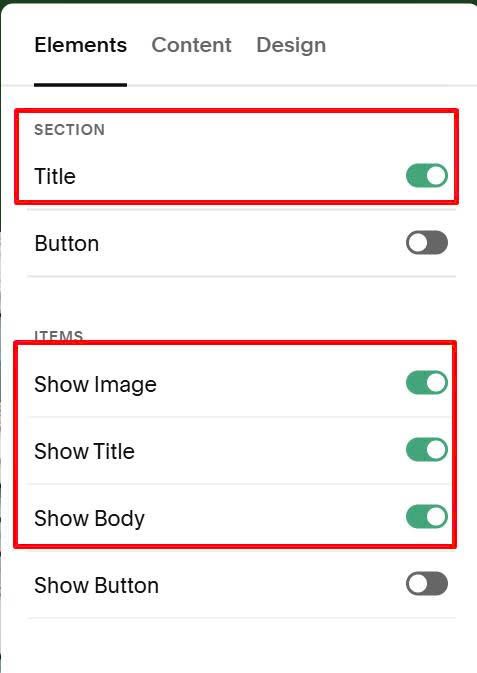
#1.2. Enable these options
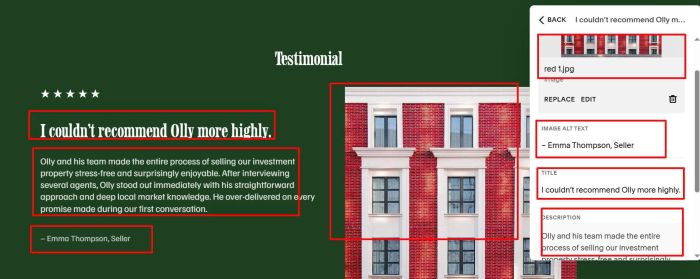
#1.3. Add your testimonial text/image. See screenshot to know exact text you need to add.
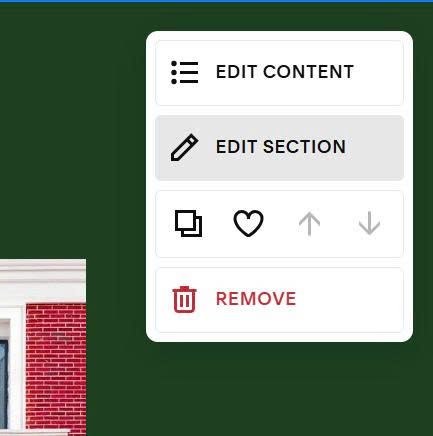
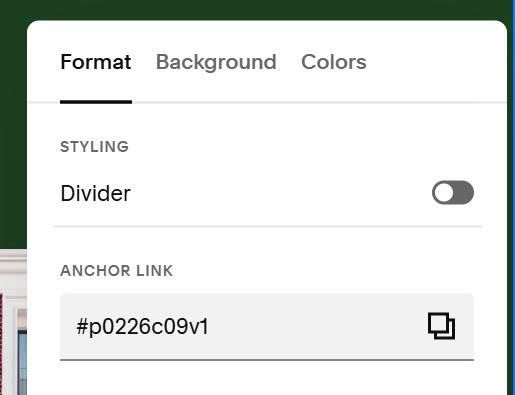
#1.4. Hover on top right of section > Click Edit Section
at Anchor Link, enter word: p0226c09v1
p0226c09v1
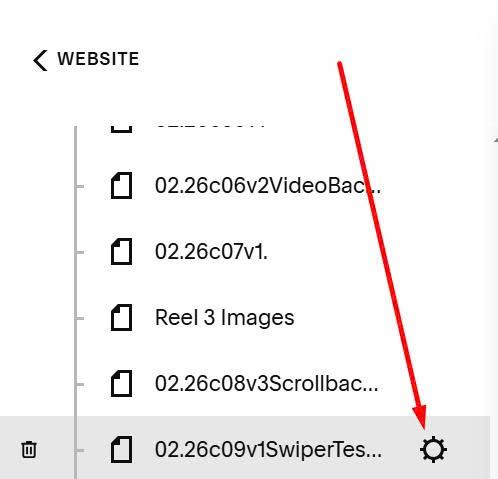
#1.5. Hover on page where you use Team section > Click Gear icon
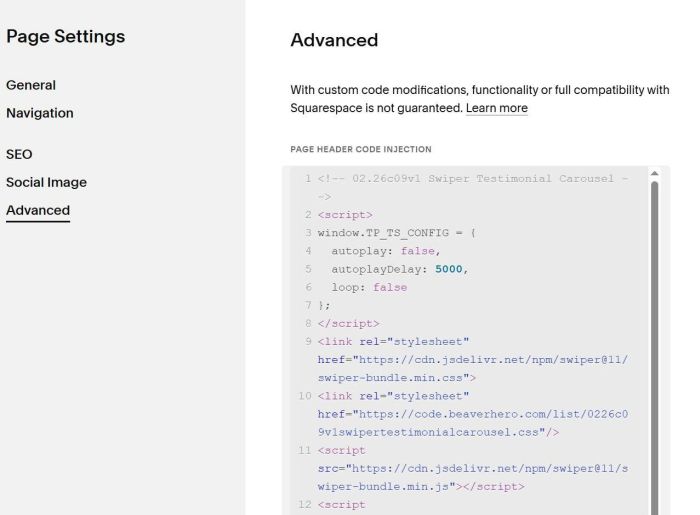
Click Advanced > Paste this code
<!-- 02.26c09v1 Swiper Testimonial Carousel -->
<script>
window.TP_TS_CONFIG = {
  autoplay: false,
  autoplayDelay: 5000,
  loop: false
};
</script>
<link rel="stylesheet" href="https://cdn.jsdelivr.net/npm/swiper@11/swiper-bundle.min.css">
<link rel="stylesheet" href="https://code.beaverhero.com/list/0226c09v1swipertestimonialcarousel.css"/>
<script src="https://cdn.jsdelivr.net/npm/swiper@11/swiper-bundle.min.js"></script>
<script src="https://code.beaverhero.com/list/0226c09v1swipertestimonialcarousel.js"></script>
#2. Customize
#2.1. To change these text style
- Heading: inherit Heading 2 style
- Description: inherit P2 style
- Name: inherit P3 style

#2.2. To change stars style, use this to Custom CSS box
div.tp-ts__stars {
    font-size: 18px;
    color: #f1f;
}
#2.3. To change Previous/Next style, use this to Custom CSS
div.tp-ts__footer div {
    color: #f1f;
    font-size: 20px;
}
#2.4. To change line above Previous/Next, use this to Custom CSS
div.tp-ts__footer {
    border-color: #f1f;
}
#2.5. To change Previous/Next to custom text, use this to Custom CSS
div.tp-ts__prev, div.tp-ts__next {
    visibility: hidden;
}
.tp-ts__prev:before {
    visibility: visible;
    content: "new previous next";
}
.tp-ts__next:after{
     visibility: visible;
    content: "new next next";
}
