Description
- add description text to Product Category Page
- update: 27-08-2026 (fix some problems)
- buy me a coffee
#1. Install code
if you use Personal/Basic Plan and doesn’t support Injection, see #2.2
#1.1. First, find Product Category Page URL
In my example, we will have:
/store01/facebook-ads

/store01/trade-marketing

#1.2. Create 2 pages in Not Linked with URLs:
- /category-facebook-ads
- /category-trade-marketing
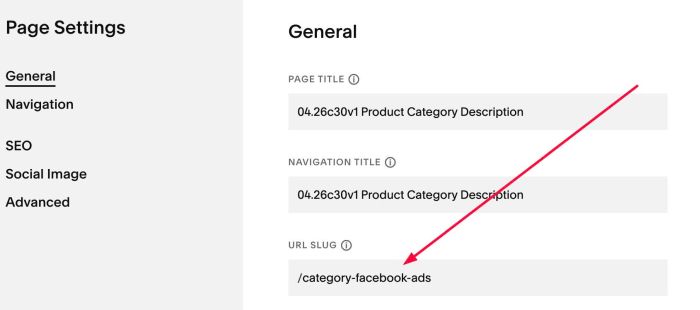
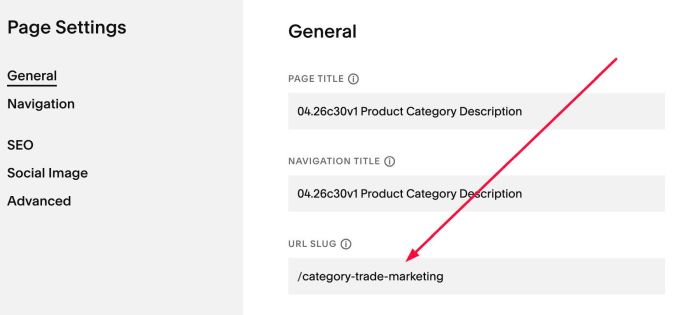
Next, add desired text to these pages.


#1.3. Click Gear icon on Store Page
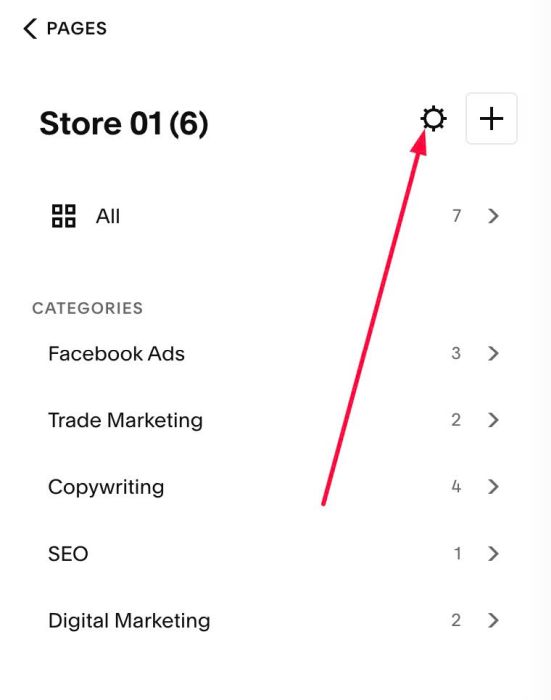
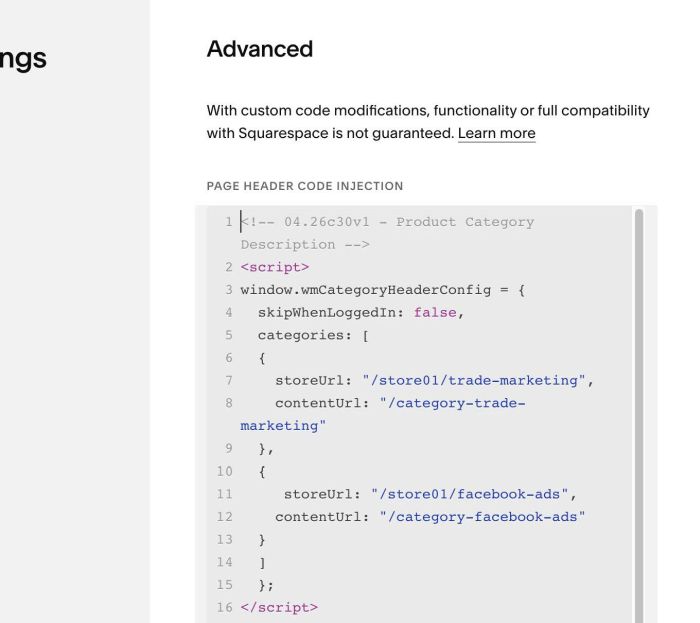
Next, click Advanced > Page Header Code Injection

#1.4. Paste this code
- Note: code won’t run in Edit Mode to prevent conflict
<!-- 04.26c30v1 - Product Category Description -->
<script>
window.wmCategoryHeaderConfig = {
  skipWhenLoggedIn: false,
  categories: [
  {
    storeUrl: "/store01/trade-marketing",
    contentUrl: "/category-trade-marketing"
  },
  {
     storeUrl: "/store01/facebook-ads",
    contentUrl: "/category-facebook-ads"
  }
  ]
  };
</script>
<script src="https://code.beaverhero.com/store/0426c30v1v3productcategorydes.js"></script>
#2. Customize
#2.1. You can update Product Category URL – Page Content URL
window.wmCategoryHeaderConfig = [
  {
    storeUrl: "/store01/trade-marketing",
    contentUrl: "/category-trade-marketing"
  },
  {
    storeUrl: "/store01/facebook-ads",
    contentUrl: "/category-facebook-ads"
  }
];
#2.2. If you use Personal/Basic Plan and your plan doesn’t support Injection, you can add a Section in Store Page > Then add a Block > Choose Markdown.
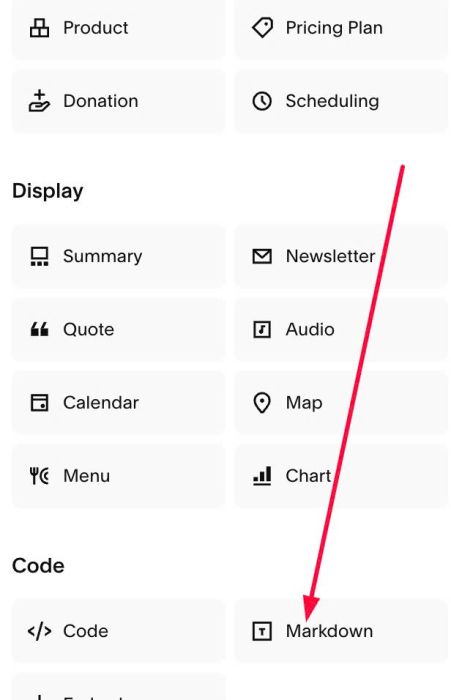
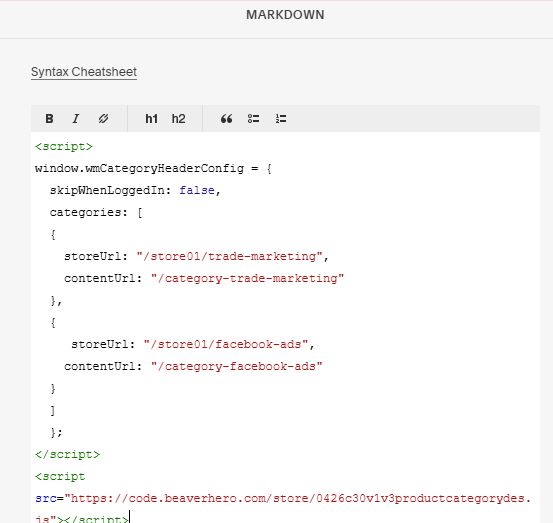
Then paste this code into Markdown Block
<script>
window.wmCategoryHeaderConfig = {
  skipWhenLoggedIn: false,
  categories: [
  {
    storeUrl: "/store01/trade-marketing",
    contentUrl: "/category-trade-marketing"
  },
  {
     storeUrl: "/store01/facebook-ads",
    contentUrl: "/category-facebook-ads"
  }
  ]
  };
</script>
<script src="https://code.beaverhero.com/store/0426c30v1v3productcategorydes.js"></script>
#2.3. If you are using description section in Store Page and need to hide it on Product Category Page, you can do these.
First, hover on top right of section > Click EDIT SECTION
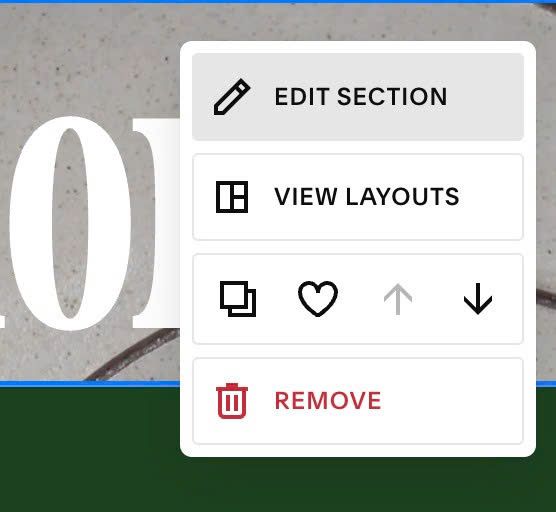
at Anchor Link, enter word: store-description

Then use this code under main code
<style>
  body.store-category #store-description {
    display: none;
}
</style>