Description
- hover text show image follow cursor (use Summary Block)
- view demo – password: abc
- buy me a coffee
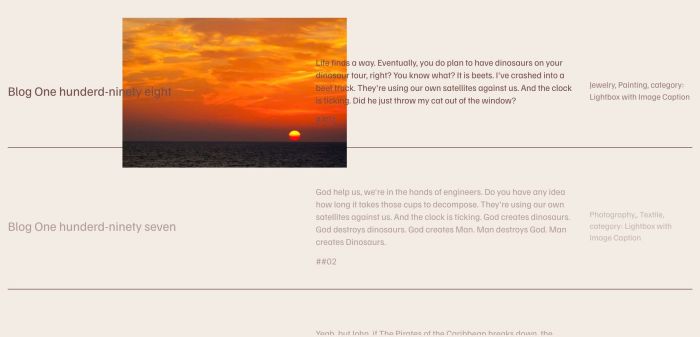
#1. Install Code
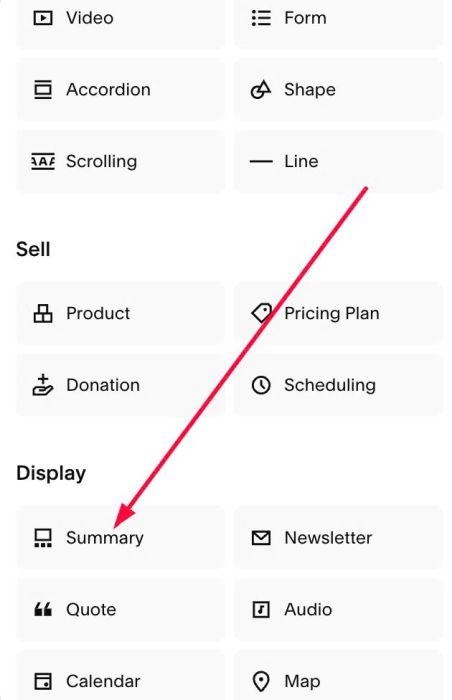
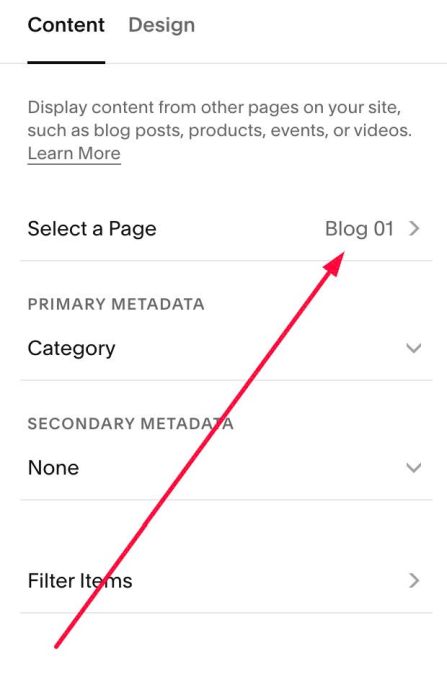
#1.1. First add a Summary Block
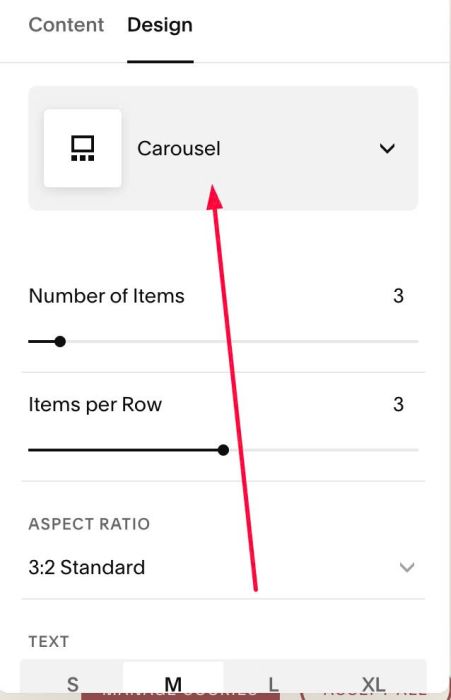
#1.2. Make sure you choose Carousel
#1.3. Connect it with a Blog Page
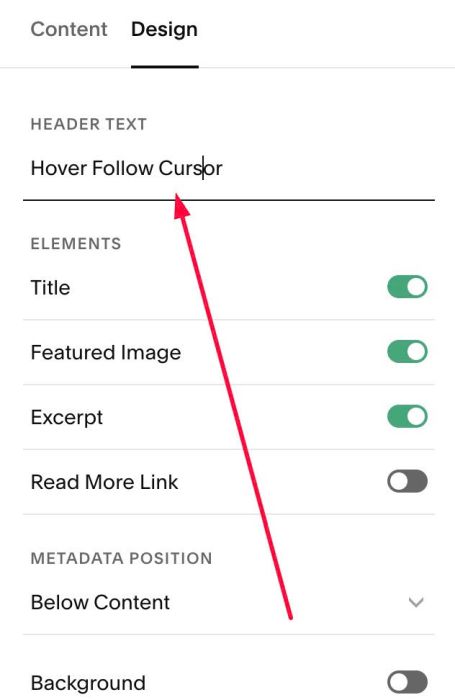
#1.4. at Header Text > Enter word: Hover Follow Cursor
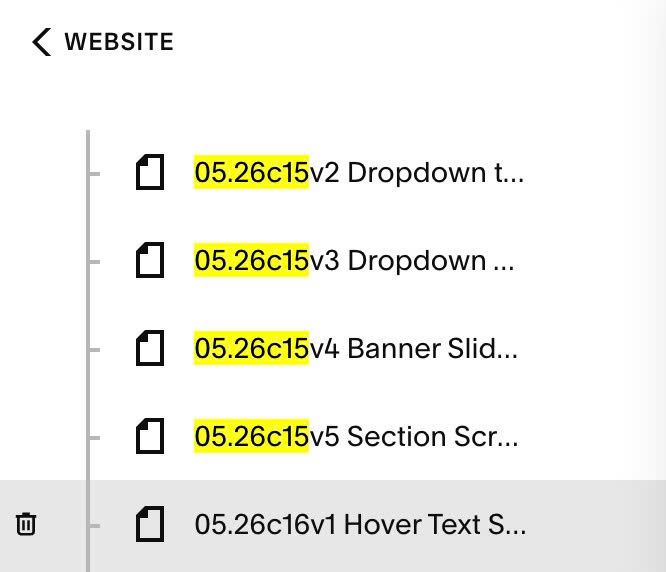
#1.5. Hover on Page where you use Summary Block > Click Gear icon
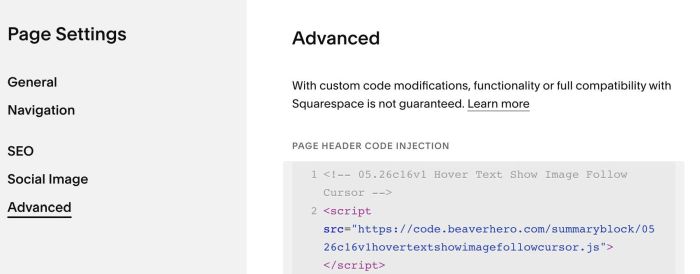
Click Advanced > Paste this code.
- If you use Personal/Basic Plan and your plan doesn’t support Injection, see #3.1.
<!-- 05.26c16v1 Hover Text Show Image Follow Cursor -->
<script src="https://code.beaverhero.com/summaryblock/0526c16v1hovertextshowimagefollowcursor.js"></script>
#2. Customize
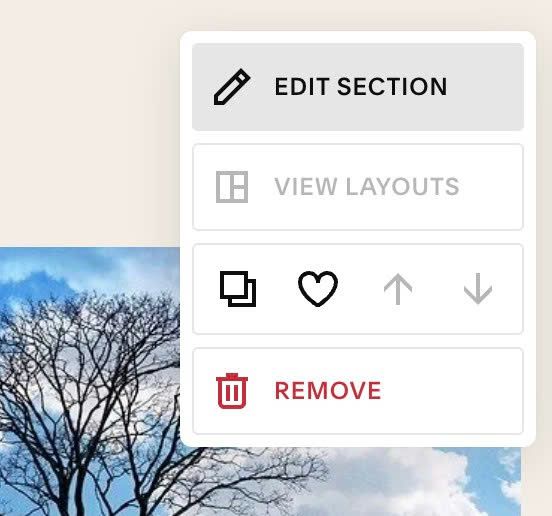
#2.1. If you see Summary Block Carousel flash then disappear, you can hover on top right of section > Click EDIT SECTION
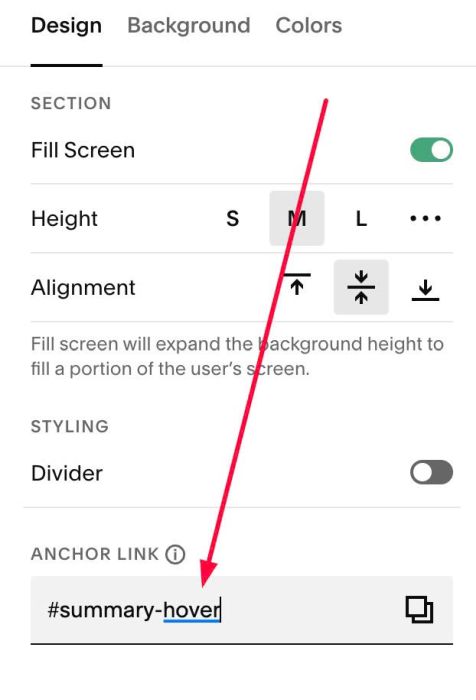
at Design > Anchor Link > Enter word: summary hover
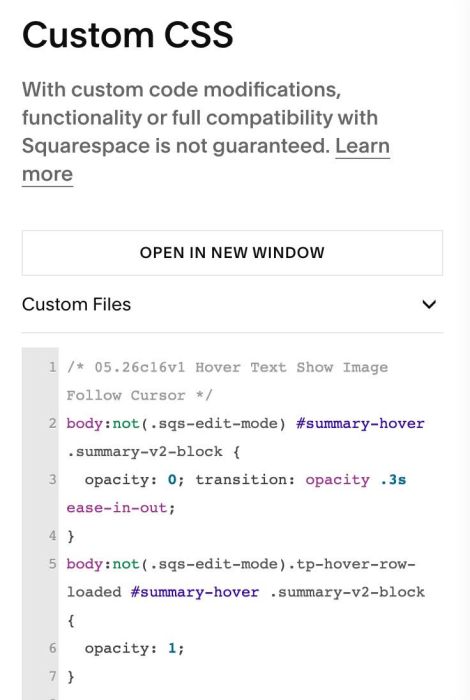
Next, add this code to Custom CSS
body:not(.sqs-edit-mode) #summary-hover .summary-v2-block {
  opacity: 0; transition: opacity .3s ease-in-out;
}
body:not(.sqs-edit-mode).tp-hover-row-loaded #summary-hover .summary-v2-block {
  opacity: 1;
}
#2.2. To disable link from Summary Title, you can add text to Anchor Link (follow #2.1) then use this code to Custom CSS
#summary-hover a.summary-title-link {
    pointer-events: none;
}
to disable link from Metadata (category, tags…) use this CSS code
#summary-hover .summary-metadata {
    pointer-events: none;
}
#2.3. To disable effect on mobile, add this code to top of code
<script>
window.TpHoverRowConfig = {
  disableOnMobile: true,
  mobileBreakpoint: 768
};
</script>

#2.4. To fix problem scroll right on mobile, you can use this code to Custom CSS box
@media screen and (max-width:767px) {
    body:has(div.tp-hover-row-off) {
    overflow-x: hidden !important;
}}
if problem appears on both desktop + mobile, change 767px to 3000px
#3. Other
#3.1. If you use Personal/Basic Plan and your plan doesn’t support Injection, you can add a Block under Summary Block.

Choose Markdown.

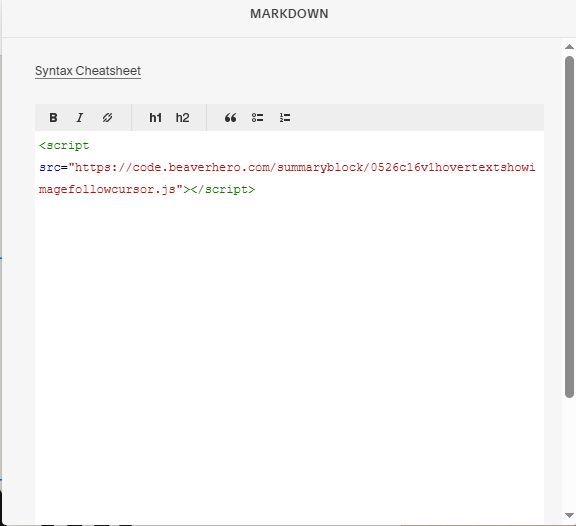
Paste this code into Markdown.
<script src="https://code.beaverhero.com/summaryblock/0526c16v1hovertextshowimagefollowcursor.js"></script>