Description
- hover text show image (desktop), tap text show image (mobile), click image open new page/link
- view demo – password: abc
- buy me a coffee

#1. Install Code
#1.1. First you need to add a Text Block + some Image Blocks, something like this

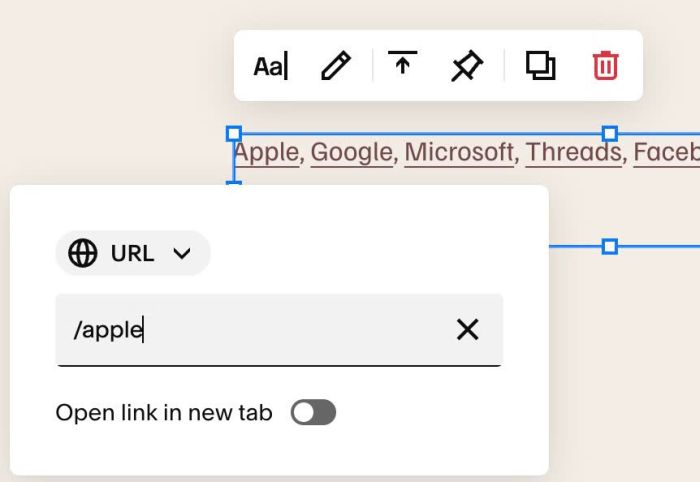
#1.2. Add Link to Text + Image, make sure both use same URLs
For example, with Apple text, we will use page url: /apple
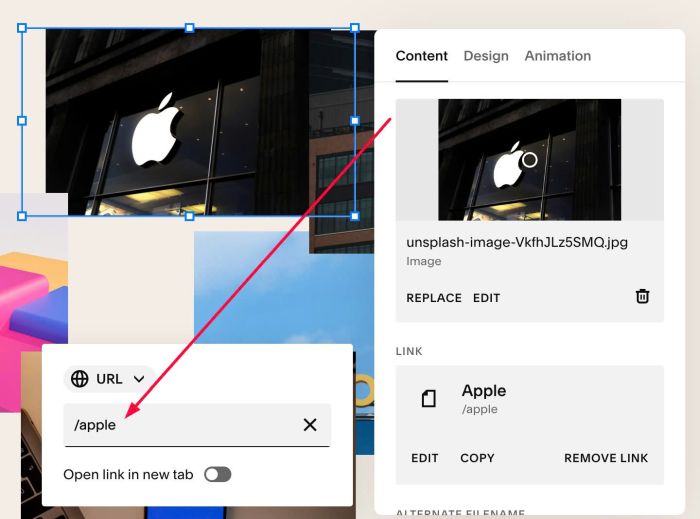
add same url to Apple image
You can also use external url, like this Threads text
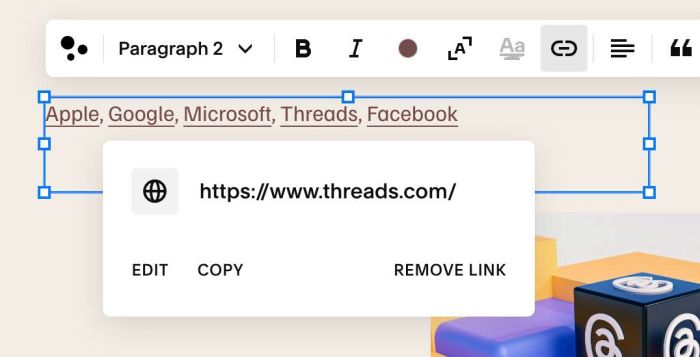
but make sure Threads image use same url
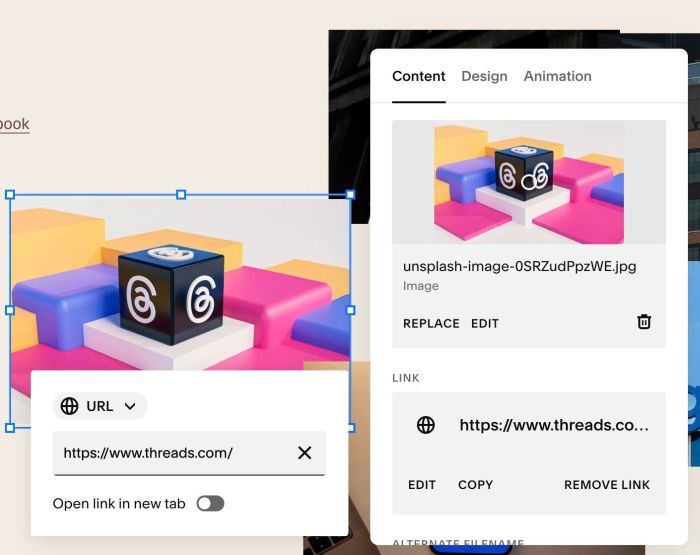
#1.3. Drag all Image Blocks overlap together. You can ignore this step if you don’t want.

#1.4. Hover on top right of Section > Click EDIT SECTION
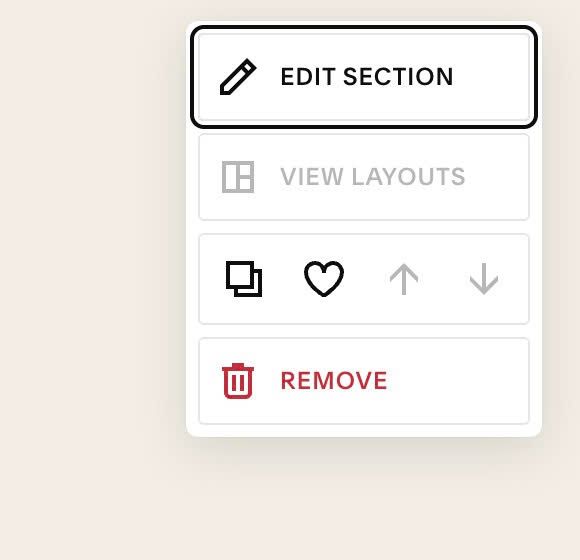
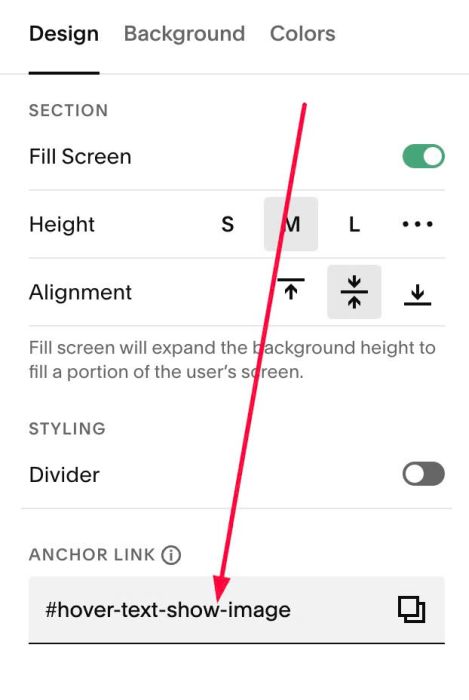
#1.5. at Design > Anchor Link > Enter word: hover-text-show-image
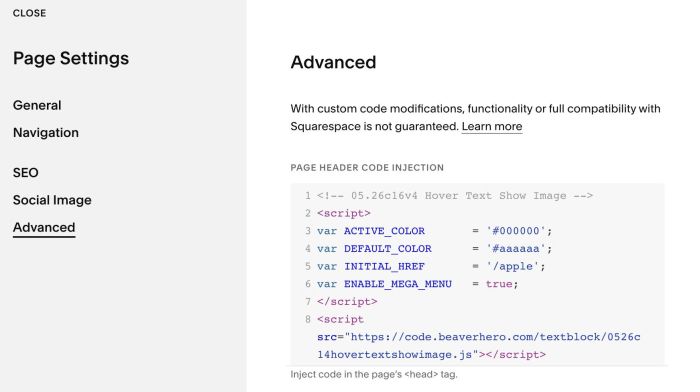
#1.6. Hover on Page where you added Text/Images > Click Gear icon
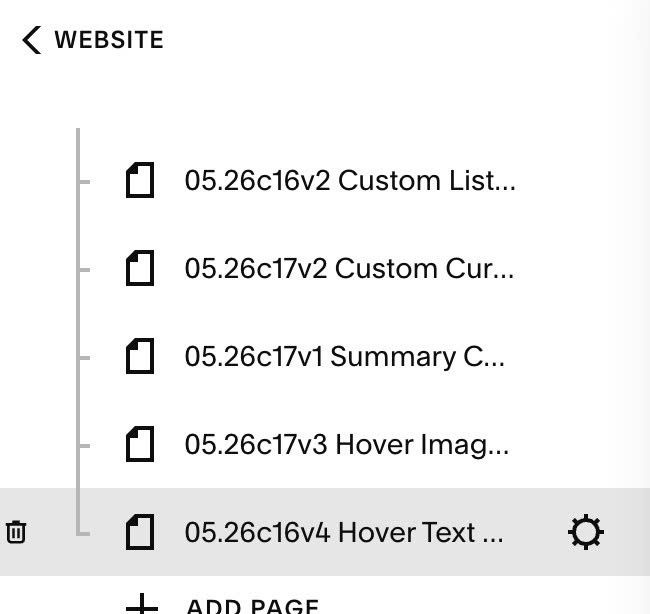
Click Advanced > Paste this code
- If you use Personal/Basic Plan and your plan doesn’t support Injection, you can see #3.1.
<!-- 05.26c16v4 Hover Text Show Image -->
<script>
var ACTIVE_COLOR       = '#000000';
var DEFAULT_COLOR      = '#aaaaaa';
var INITIAL_HREF       = '/apple';
var ENABLE_MEGA_MENU   = true;
</script>
<script src="https://code.beaverhero.com/textblock/0526c14hovertextshowimage.js"></script>
#2. Customize
#2.1. To change Active item color, change line 03
var ACTIVE_COLOR = '#000000';
#2.2. To change color of other texts, change line 04
var DEFAULT_COLOR = '#aaaaaa';
#2.3. To make an item active initial, you can adjust line 05
var INITIAL_HREF = '/apple';
for example, if you want to make text Threads and image Threads active initial, you can change it to this
var INITIAL_HREF = 'https://www.threads.com/';
#2.4. If you use Mega Menu Plugin, you need to add code to Code Injection Footer, under Mega Menu Plugin
#3. Other
#3.1. If you use Personal/Basic Plan and your plan doesn’t support Injection, you can add a Block under Text Block.

Choose Markdown

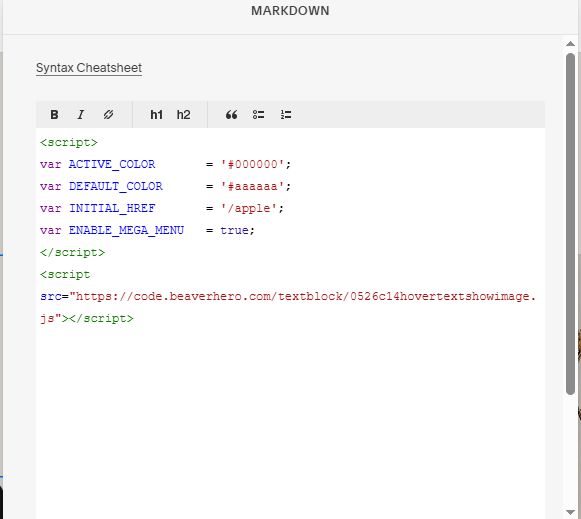
Then add this code into Markdown.
<script>
var ACTIVE_COLOR       = '#000000';
var DEFAULT_COLOR      = '#aaaaaa';
var INITIAL_HREF       = '/apple';
var ENABLE_MEGA_MENU   = true;
</script>
<script src="https://code.beaverhero.com/textblock/0526c14hovertextshowimage.js"></script>