Description
- play video background (uploaded video) on text click
- redirect to new page after finished video playing
- view demo – password: abc
- buy me a coffee

#1. Install Code
#1.1. First you can add a Section with Image Background
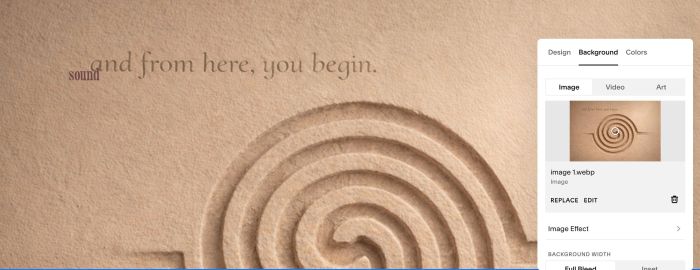
#1.2. Next, adding 2 Text Blocks like this
(Remember using Heading 4)

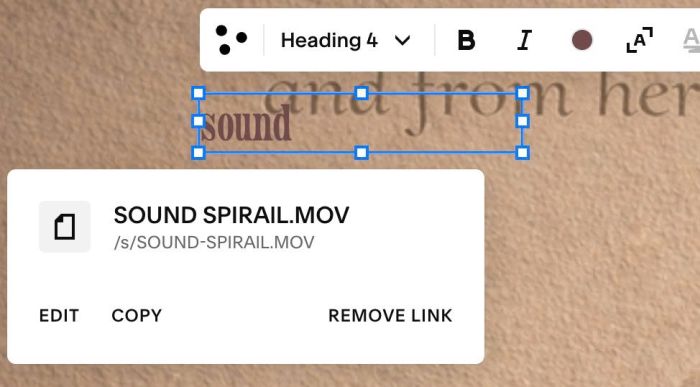
#1.3. Highlight each text > Click Link icon
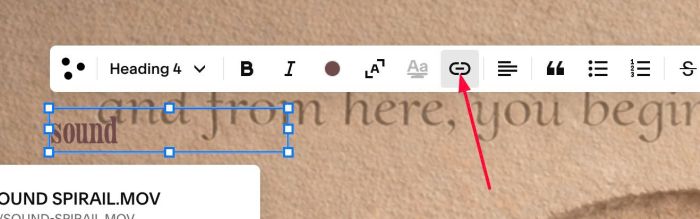
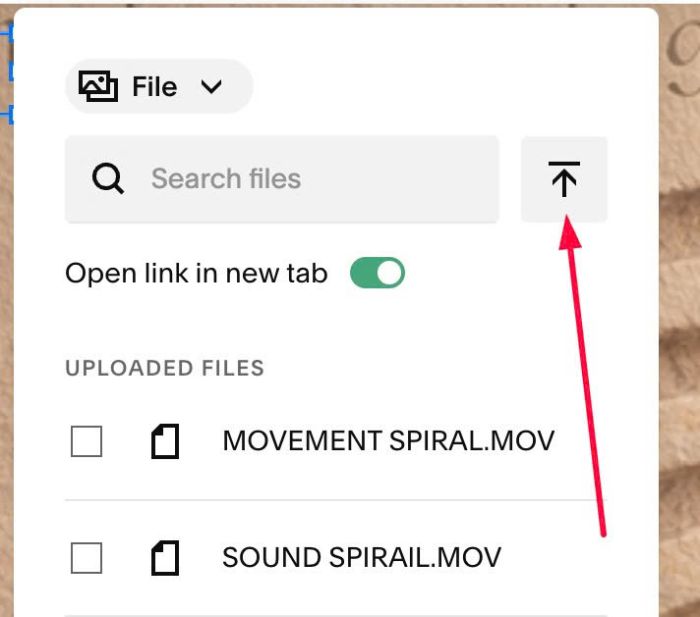
at URL > Choose File
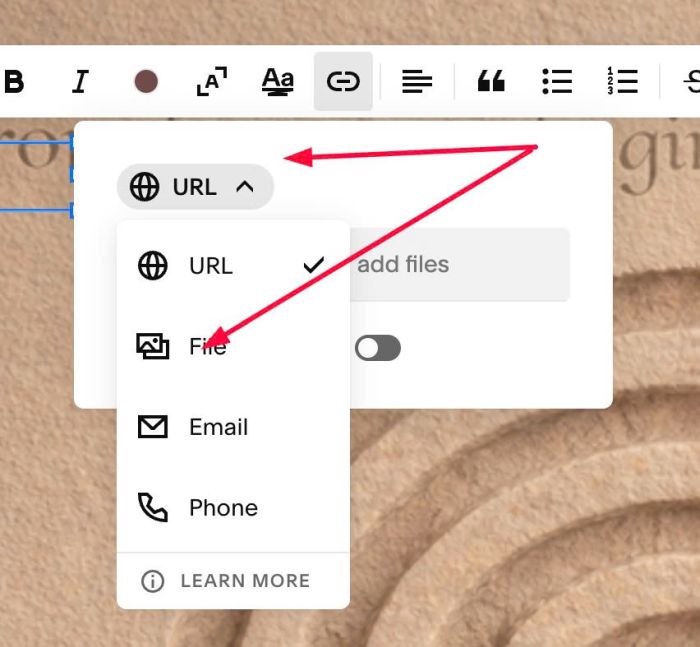
Upload MP4 video
We will have result like this
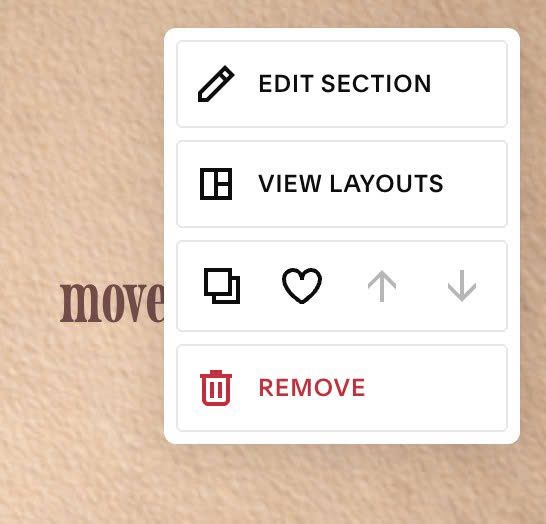
#1.4. Hover on top right of section > Click EDIT SECTION
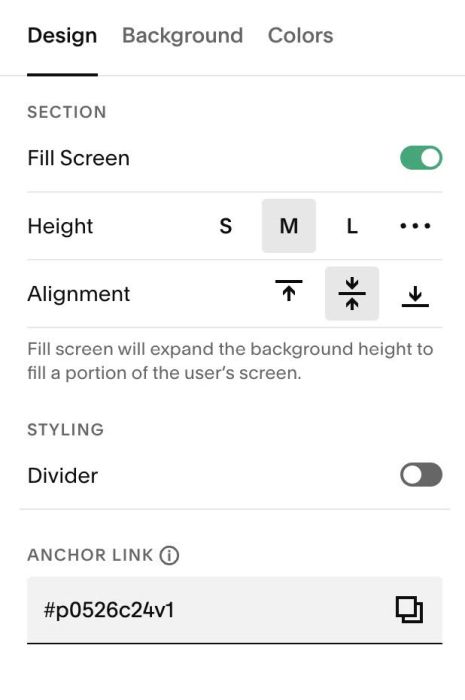
at Anchor Link > Enter word: p0526c24v1
p0526c24v1
#1.5. Hover on Page where you use Section with Image Background > Click Gear icon
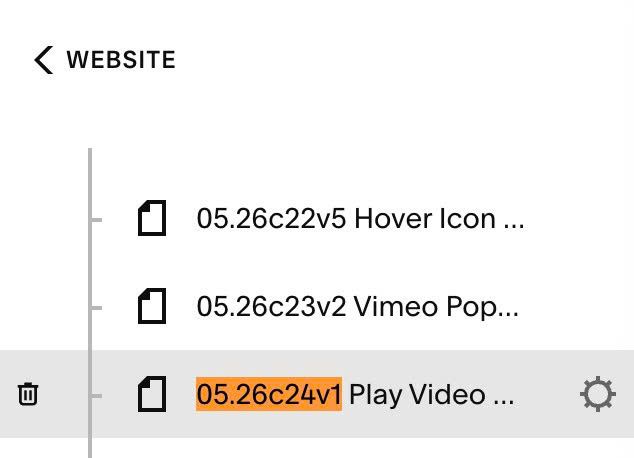
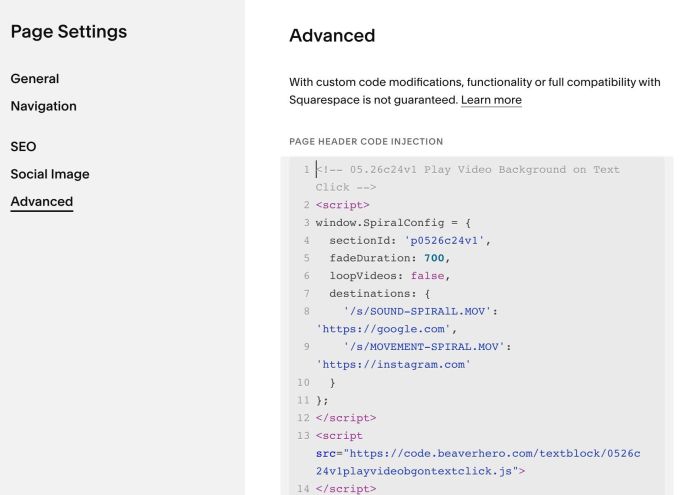
Click Advanced > Paste this code
- If you use Personal/Basic Plan and your plan doesn’t support Injection, you can see #3.1.
<!-- 05.26c24v1 Play Video Background on Text Click -->
<script>
window.SpiralConfig = {
  sectionId: 'p0526c24v1',
  fadeDuration: 700,
  loopVideos: false,
  destinations: {
    '/s/SOUND-SPIRAlL.MOV': 'https://google.com',
    '/s/MOVEMENT-SPIRAL.MOV': 'https://instagram.com'
  }
};
</script>
<script src="https://code.beaverhero.com/textblock/0526c24v1playvideobgontextclick.js">
</script>
#1.6. You need to update Video URL
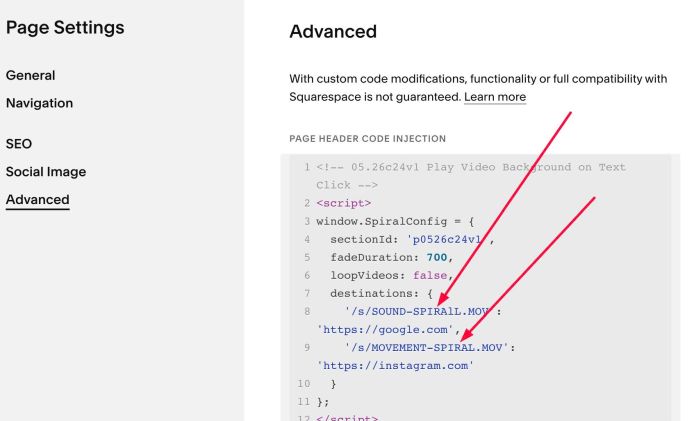
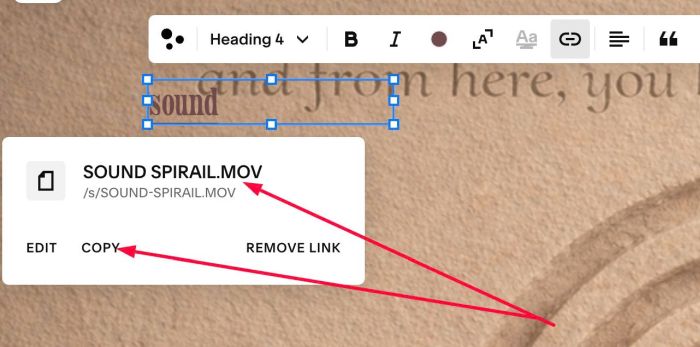
To match with video url you uploaded in step #1.3
#2. Customize
#2.1. To make video loop – disable open new page, you can change this line 06
loopVideos: false,
to this
loopVideos: true,
#3. Other
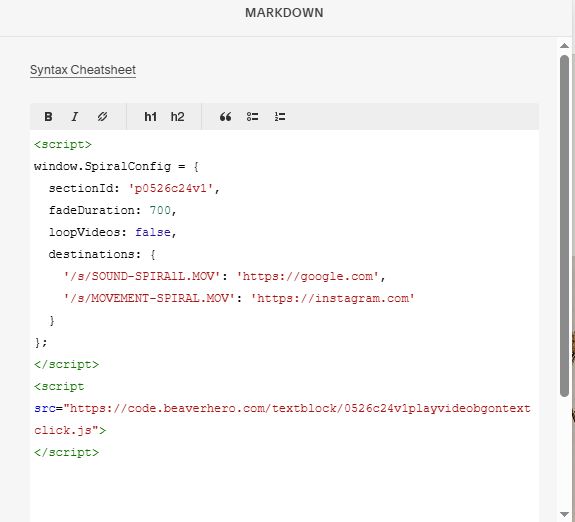
#3.1. If you use Personal/Basic Plan and your plan doesn’t support Injection, you can add a Block to current section

Choose Markdown

Add this code into Markdown
<script>
window.SpiralConfig = {
  sectionId: 'p0526c24v1',
  fadeDuration: 700,
  loopVideos: false,
  destinations: {
    '/s/SOUND-SPIRAlL.MOV': 'https://google.com',
    '/s/MOVEMENT-SPIRAL.MOV': 'https://instagram.com'
  }
};
</script>
<script src="https://code.beaverhero.com/textblock/0526c24v1playvideobgontextclick.js">
</script>