Description
- adding Summary Block with Past Event – Current Event – Upcoming Event
- view demo – password: abc
- buy me a coffee

#1. Install Code
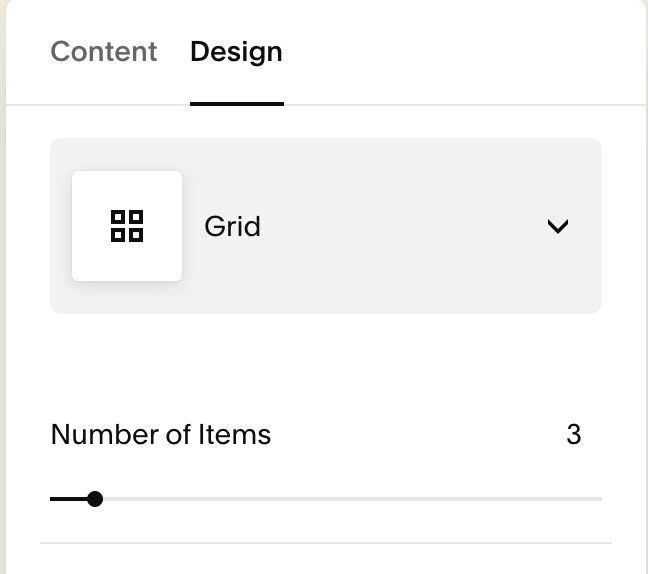
#1.1. First, make sure you use Summary Block Grid
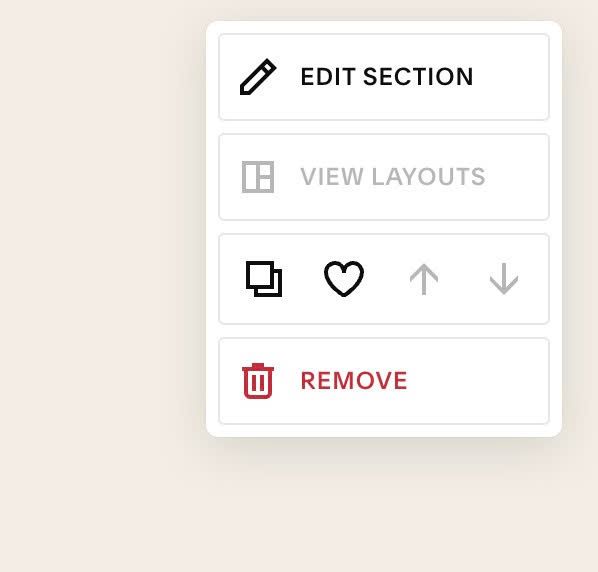
#1.2. Next, hover on top right of section > Click EDIT SECTION
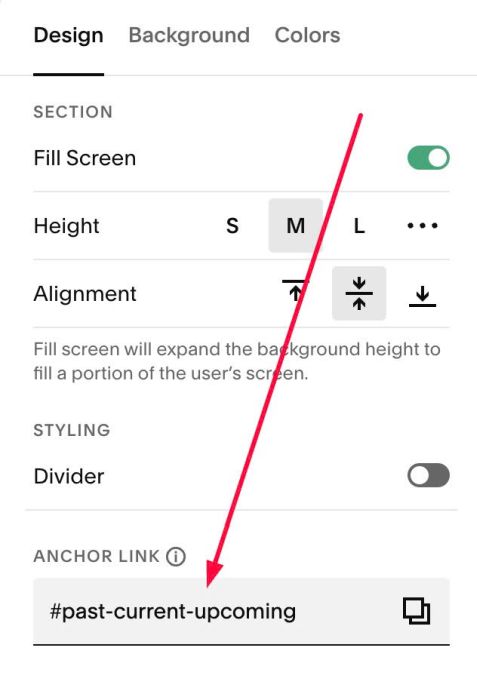
#1.3. at Design > Anchor Link > Enter word: past-current-upcoming
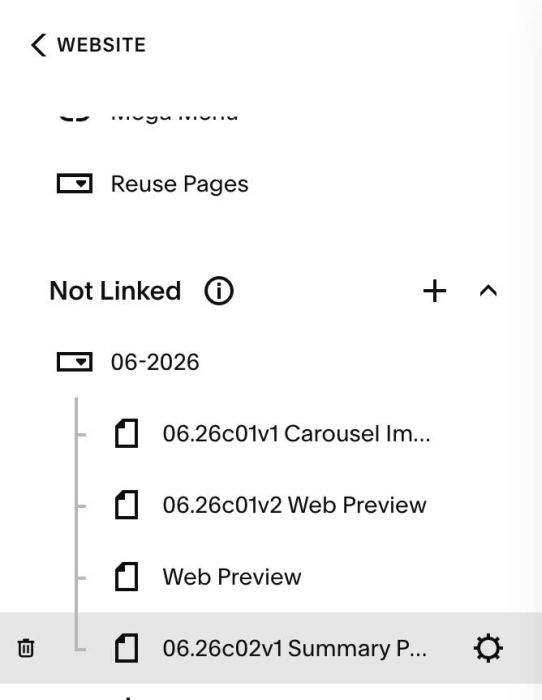
#1.4. Hover on Page where you use Summary Block > Click Gear icon
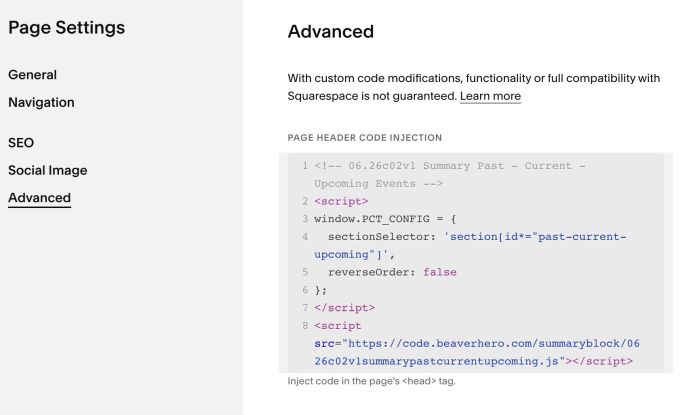
Click Advanced > Paste this code
- If you use Personal/Basic Plan and your plan doesn’t support Injection, see #3.1.
<!-- 06.26c02v1 Summary Past - Current - Upcoming Events -->
<script>
window.PCT_CONFIG = {
  sectionSelector: 'section[id*="past-current-upcoming"]',
  reverseOrder: false
};
</script>
<script src="https://code.beaverhero.com/summaryblock/0626c02v1summarypastcurrentupcoming.js"></script>
#2. Customize
#2.1. To change order from Past Event – Current Event – Upcoming Event
to Upcoming Event – Current Event – Past Event, like this

You can change this line (Line 05)
reverseOrder: false
to
reverseOrder: true
#2.2. If you use option Filter
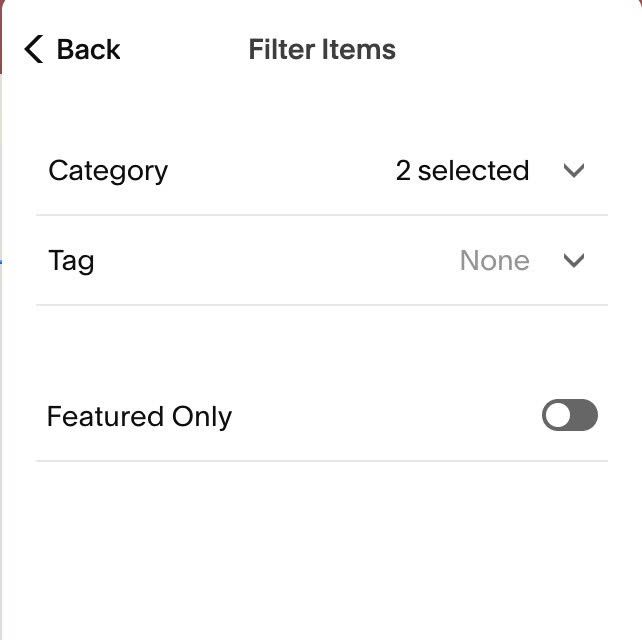
You need to change line
sectionSelector: 'section[id*="past-current-upcoming"]',
to this
sectionSelector: 'section[id*="past-current-upcoming"]',
 collectionUrl: '',
 category: '',
 tag: '',
#3. Customize
#3.1. If you use Personal/Basic Plan and your plan doesn’t support Injection, you can add a Block under Summary Block
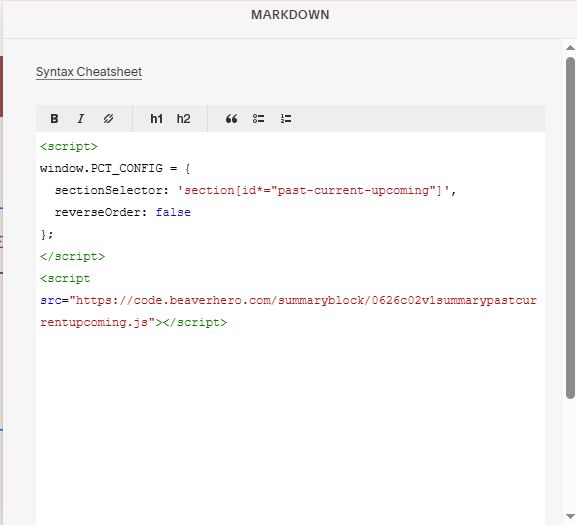
Choose Markdown
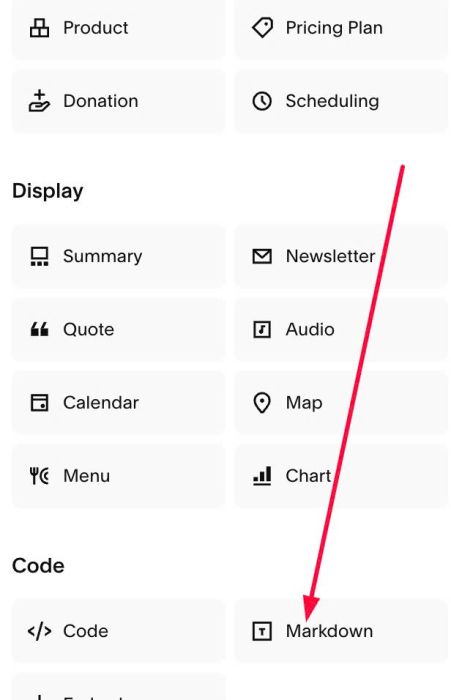
Paste this code into Markdown
<script>
window.PCT_CONFIG = {
  sectionSelector: 'section[id*="past-current-upcoming"]',
  reverseOrder: false
};
</script>
<script src="https://code.beaverhero.com/summaryblock/0626c02v1summarypastcurrentupcoming.js"></script>