Description
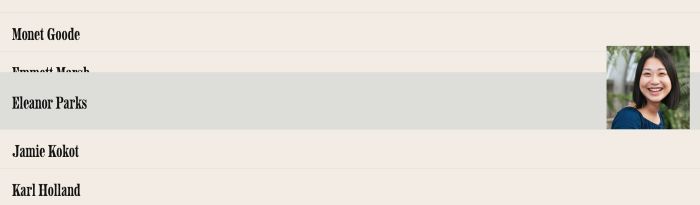
- hover text show image in same line
- view demo – password: abc
- buy me a coffee
#1. Install Code
#1.1. First, add a Section > Choose Team > Choose Section with (i) icon

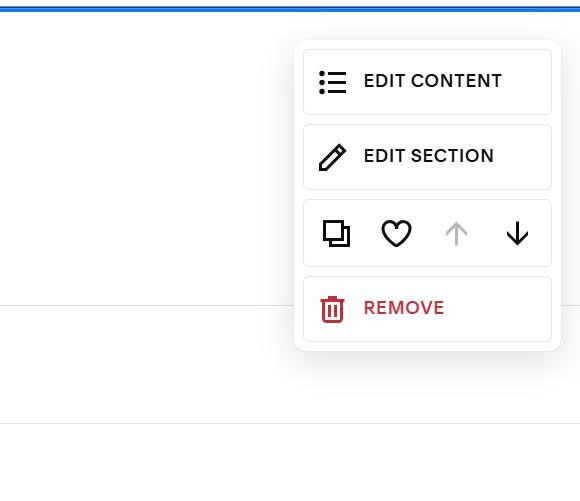
#1.2. Next, hover on top right of section > Click Edit Content
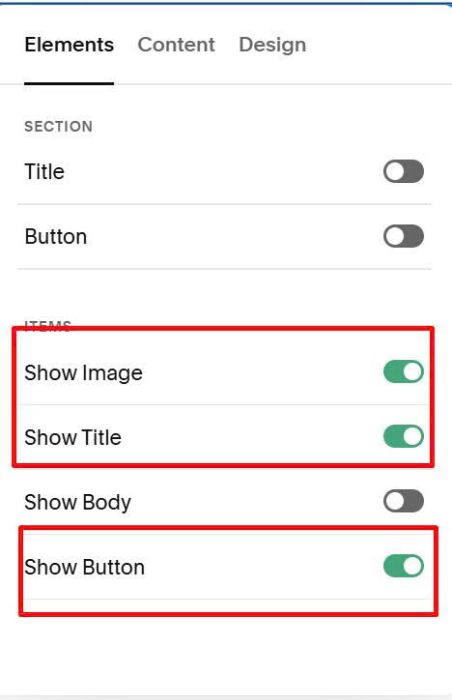
Enable Title, Image, Button
You can add Title, Image, URL here

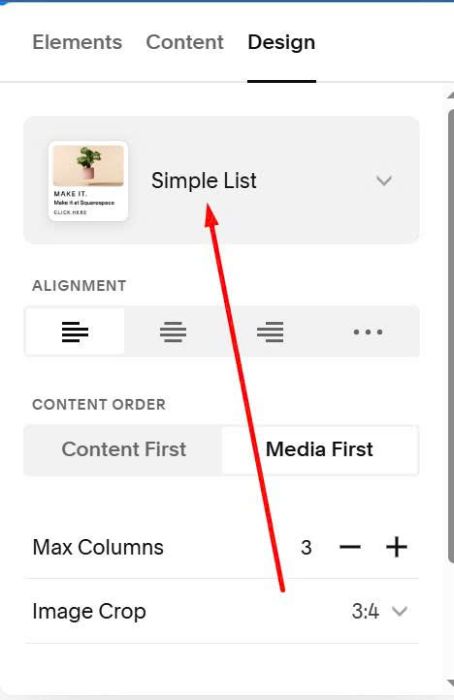
#1.3. Make sure you choose Simple List
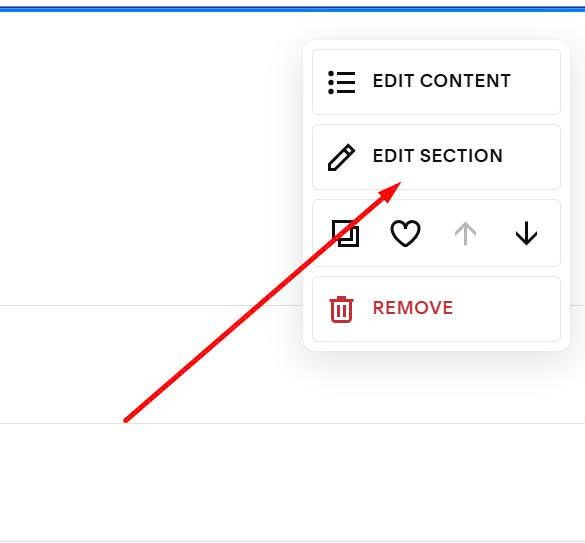
#1.4. Hover on top right of Section > Click Edit Section
at Format > Anchor Link, enter word: hover-list2

#1.5. Hover on Page where you use Section > Click Gear icon

Click Advanced > Paste this code
- If you use Personal Plan/Basic Plan and your plan doesn’t support Injection, see #3.1.
<!-- 06.26c01v11 List Section Style 02: Hover Text - Show Image in Same Line -->
<script>
window.HoverList2Config = {
  selector: "#hover-list2",
  titleSize: "34px",
  titleSizeMobile: "30px",
  titleColor: "#111",
  borderColor: "#e0e0e0",
  hoverBg: "#deddd8",
  imageWidth: "170px",
  imageHeight: "170px",
  rowHeight: "70px",
  expandSize: "38px",
  mobileMarginBottom: "2.5rem"
};
</script>
<script src="https://code.beaverhero.com/list/0626c01v11listsectionstyle02.js"></script>

#2. Customize
#2.1. To change Title size, you can change Line 05, Line 06
titleSize: "34px",
titleSizeMobile: "30px",
#2.2. To change Title color, you can change Line 07
titleColor: "#111",
#2.3. To change hover background color + border color

You can change Line 08, Line 09
borderColor: "#e0e0e0",
hoverBg: "#deddd8",
#2.4. To change Image size, you can change Line 10, Line 11
imageWidth: "170px",
imageHeight: "170px",
#2.5. To change space between items on Mobile, change Line 14
mobileMarginBottom: "2.5rem"
#3. Other
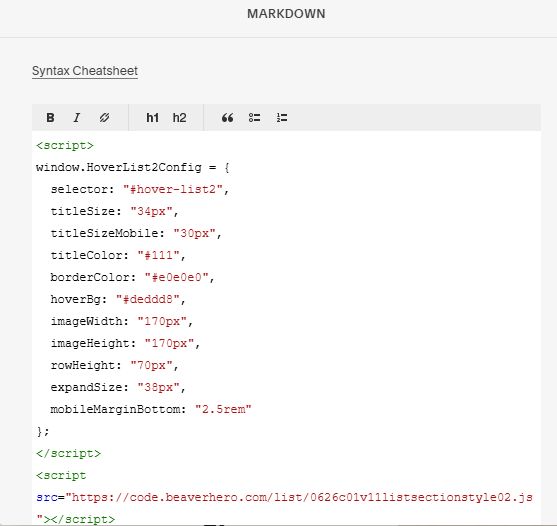
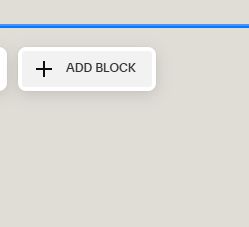
#3.1. If you use Personal/Basic Plan and your plan doesn’t support Injection, you can edit Current page > Add a Block
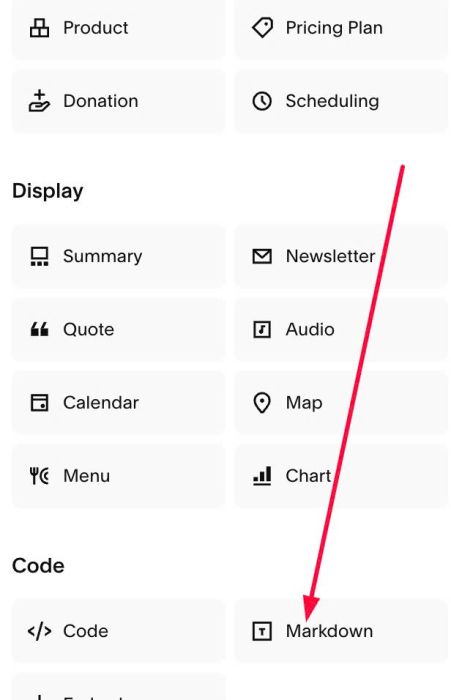
Choose Markdown
Paste this code into Markdown
<script>
window.HoverList2Config = {
  selector: "#hover-list2",
  titleSize: "34px",
  titleSizeMobile: "30px",
  titleColor: "#111",
  borderColor: "#e0e0e0",
  hoverBg: "#deddd8",
  imageWidth: "170px",
  imageHeight: "170px",
  rowHeight: "70px",
  expandSize: "38px",
  mobileMarginBottom: "2.5rem"
};
</script>
<script src="https://code.beaverhero.com/list/0626c01v11listsectionstyle02.js"></script>