Description
- make portfolio title to 2 lines
- buy me a coffee
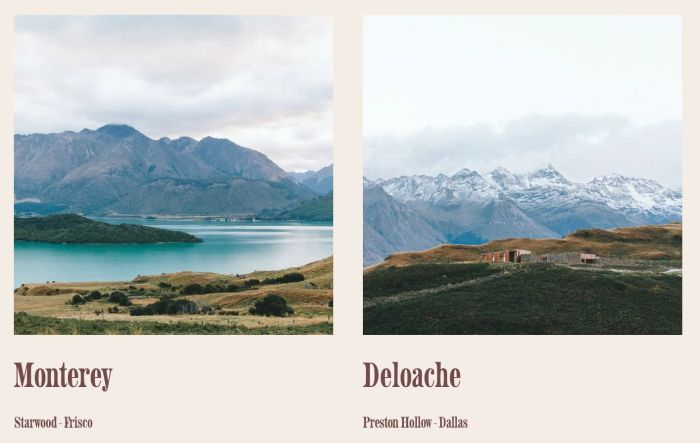
#1. Install Code
#1.1. First, make sure you use format like this in Portfolio Title
Title First Line - Title Second Line
Something like this
Monterey - Starwood - Frisco

or like this
Deloache - Preston Hollow - Dallas

#1.2. Click Gear icon on Portfolio Page

#1.3. Click Advanced > Paste this code
- If you use Personal/Basic Plan and your plan doesn’t support Injection, see #3.1
<!-- 06.26c12v2 Portfolio Title 2 lines -->
<script>
const PORTFOLIO_TITLE_CONFIG = {
  titleSelector: '.portfolio-title',

  secondLineClass: 'sqsrte-small',
  secondLineFontSize: '',
  secondLineColor: '',
  secondLineSpacingTop: '',
};
</script>
<script src="https://code.beaverhero.com/portfolio/0626c12v2portfoliotitle2lines.js"></script>

#2. Customize
#2.1. To change size of second line, you can change Line 07
secondLineFontSize: '',
to something like this
secondLineFontSize: '18px',
#2.2. To change color of second line, change Line 08
secondLineColor: '',
to something like this
secondLineColor: '#f1f',
#2.3. To change space between First – Second Line, change Line 09
secondLineSpacingTop: '',
to something like this
secondLineSpacingTop: '20px',
#3. Other
#3.1. If you use Personal/Basic Plan and your plan doesn’t support Injection, you can edit Portfolio Page > Add a Section > Add a Block

Choose Markdown
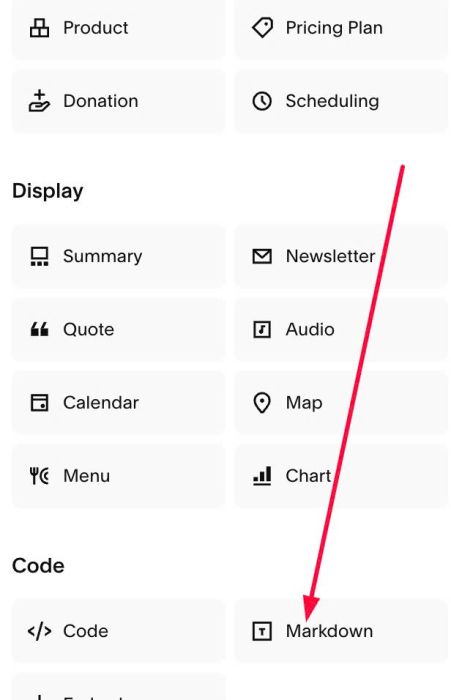
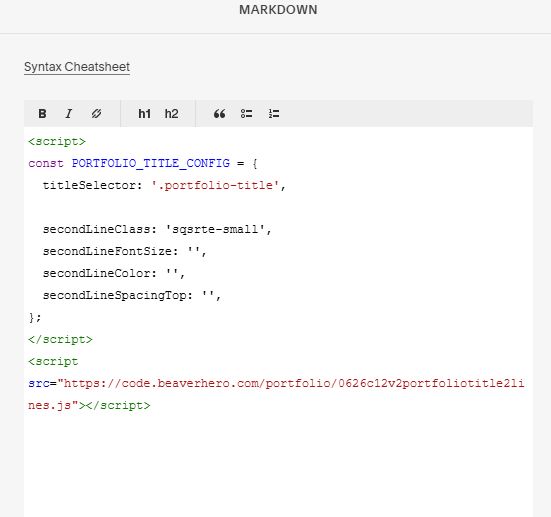
Paste the code into Markdown
<script>
const PORTFOLIO_TITLE_CONFIG = {
  titleSelector: '.portfolio-title',

  secondLineClass: 'sqsrte-small',
  secondLineFontSize: '',
  secondLineColor: '',
  secondLineSpacingTop: '',
};
</script>
<script src="https://code.beaverhero.com/portfolio/0626c12v2portfoliotitle2lines.js"></script>
#3.2. If you want to hide this Markdown section, you can hover on top right of section > Click EDIT SECTION

at Anchor Link, enter word: portfolio-markdown

Next, use this code to Custom CSS box
/* Portfolio Second Line */
body:not(.sqs-edit-mode-active) section#portfolio-markdown {
  display: none;
}
