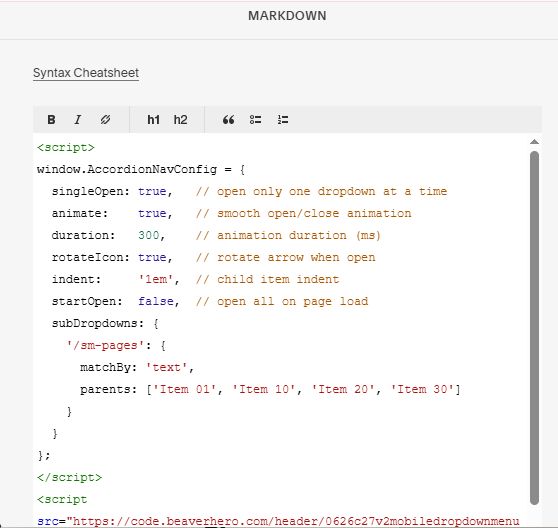
Description
- turn mobile dropdown menu to 2 levels dropdown (or 1 level dropdown)
- view demo (2 levels) – password: abc
- buy me a coffee
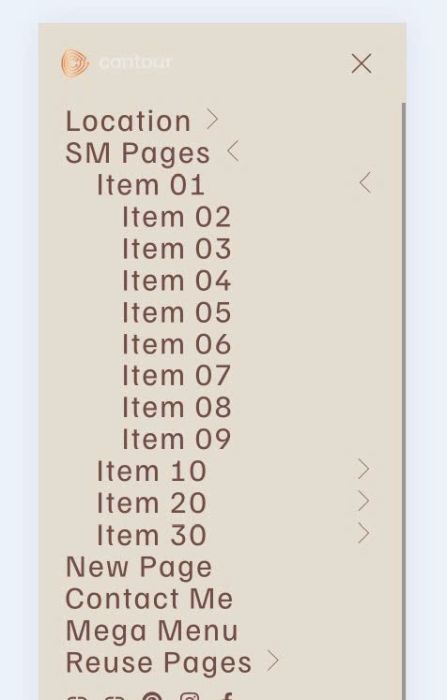
#1. Install Code
#1.1. First, you can add a Dropdown Menu, something like this
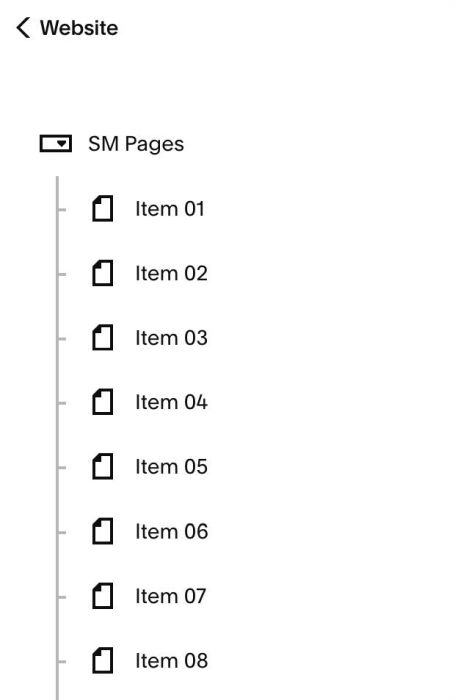
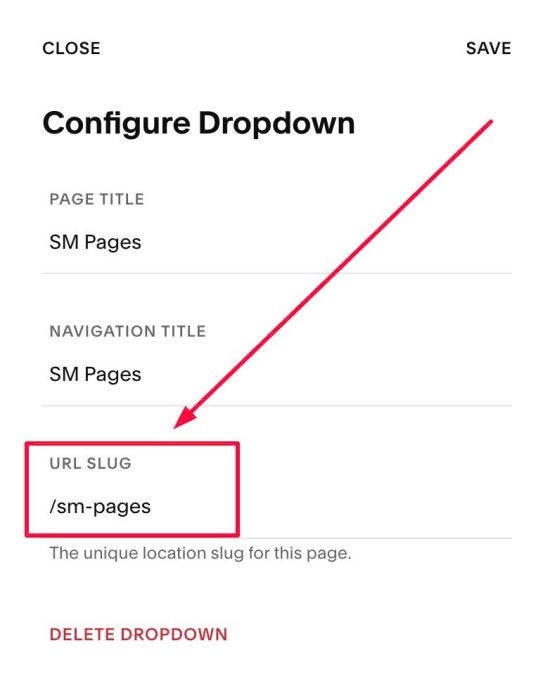
#1.2. Next, hover on dropdown > Click Gear icon
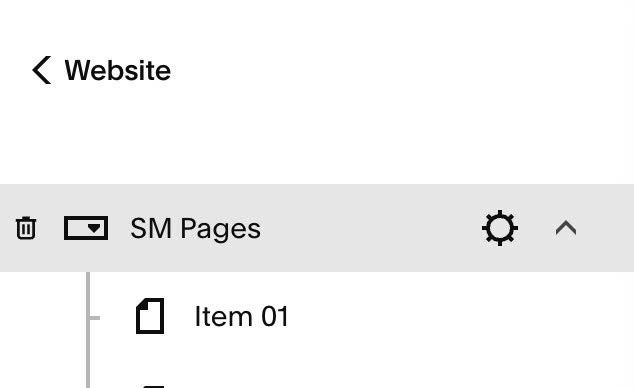
See URL Slug. We will have /sm-pages
#1.3. Use this code to Code Injection > Footer
- If you use Personal/Basic Plan and your plan doesn’t support Injection, see #3.1
<!-- 06.26c27v2 Mobile Dropdown Menu (2 levels) -->
<script>
window.AccordionNavConfig = {
  singleOpen: true,   // open only one dropdown at a time
  animate:    true,   // smooth open/close animation
  duration:   300,    // animation duration (ms)
  rotateIcon: true,   // rotate arrow when open
  indent:     '1em',  // child item indent
  startOpen:  false,  // open all on page load
  subDropdowns: {
    '/sm-pages': {
      matchBy: 'text',
      parents: ['Item 01', 'Item 10', 'Item 20', 'Item 30']
    }
  }
};
</script>
<script src="https://code.beaverhero.com/header/0626c27v2mobiledropdownmenu2levels.js"></script>
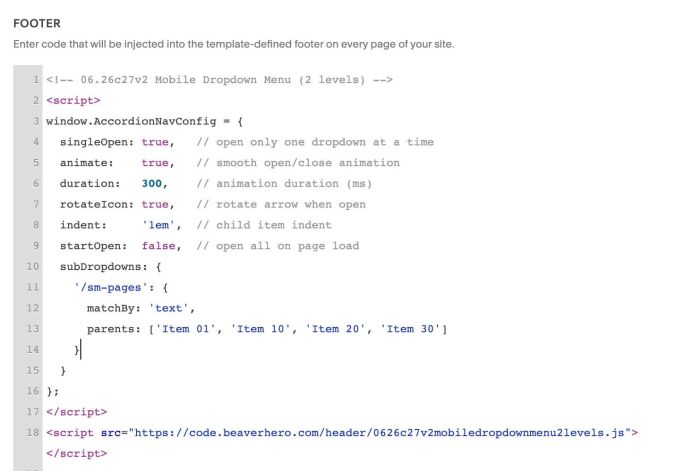
#1.4. Update options in Line 10 to Line 15 (explain below)
subDropdowns: {
    '/sm-pages': {
      matchBy: 'text',
      parents: ['Item 01', 'Item 10', 'Item 20', 'Item 30']
    }
  }
- Line 11: /sm-pages is URLSlug in step #1.2
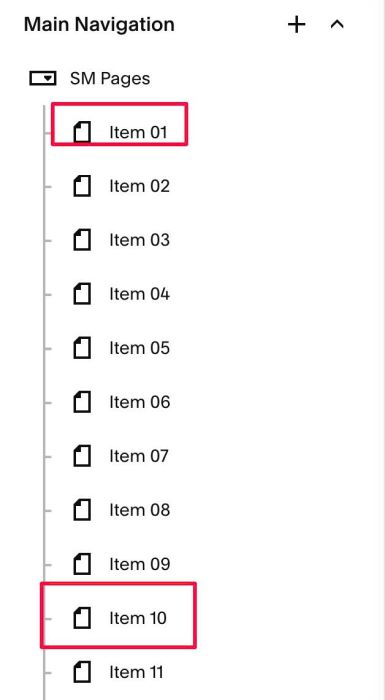
- Line 13: change Item 01, Item 10, Item 20, Item 30 to 1st level and items under them to second level
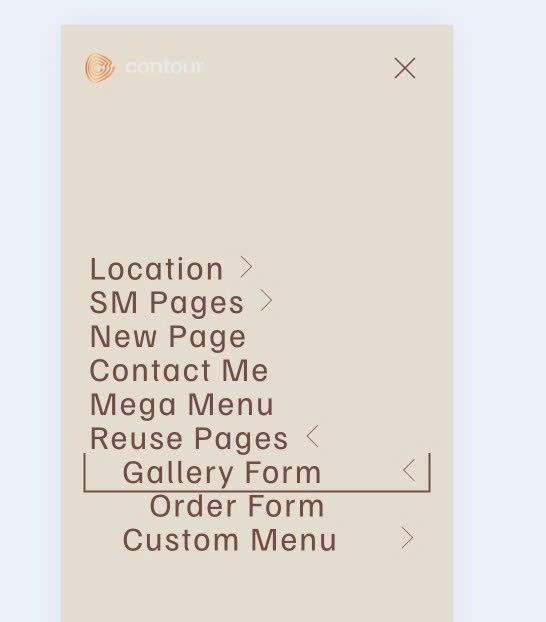
#1.5. In case you want to add another Mobile Dropdown Menus, for example this dropdown
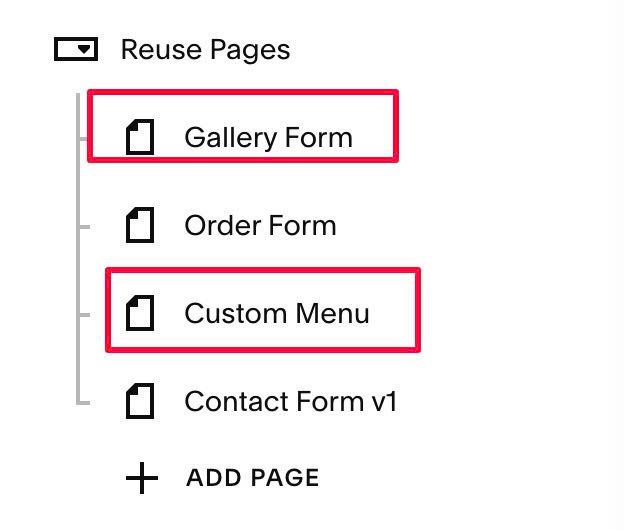
We will have code like this
- Note: /reuse-pages-1 is URL Slug of this dropdown menu
subDropdowns: {
  '/sm-pages': {
    matchBy: 'text',
    parents: ['Item 01', 'Item 10', 'Item 20', 'Item 30']
  },
  '/reuse-pages-1': {
  matchBy: "text",
  parents: ['Gallery Form', 'Custom Menu']
}
}
#2. Customize
#2.1. You can see some options in the code (Line 04 to Line 09)
singleOpen: true,   // open only one dropdown at a time
animate:    true,   // smooth open/close animation
duration:   300,    // animation duration (ms)
rotateIcon: true,   // rotate arrow when open
indent:     '1em',  // child item indent
startOpen:  false,  // open all on page load
#2.2. If you want to keep all 1 level only, use this new code to Code Injection > Footer
<!-- 06.26c27v2 Mobile Dropdown Menu (2 levels) -->
<script>
window.AccordionNavConfig = {
  singleOpen: true,   // open only one dropdown at a time
  animate:    true,   // smooth open/close animation
  duration:   300,    // animation duration (ms)
  rotateIcon: true,   // rotate arrow when open
  indent:     '1em',  // child item indent
  startOpen:  false,  // open all on page load
};
</script>
<script src="https://code.beaverhero.com/header/0626c27v2mobiledropdownmenu2levels.js"></script>
#3. Other
#3.1. If you use Personal/Basic Plan and your plan doesn’t support Injection, you can edit Site Footer
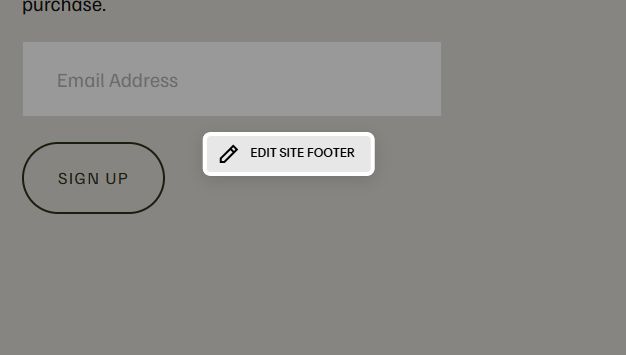
Add a Block

Choose Markdown

Add this code into Markdown
<script>
window.AccordionNavConfig = {
  singleOpen: true,   // open only one dropdown at a time
  animate:    true,   // smooth open/close animation
  duration:   300,    // animation duration (ms)
  rotateIcon: true,   // rotate arrow when open
  indent:     '1em',  // child item indent
  startOpen:  false,  // open all on page load
  subDropdowns: {
    '/sm-pages': {
      matchBy: 'text',
      parents: ['Item 01', 'Item 10', 'Item 20', 'Item 30']
    }
  }
};
</script>
<script src="https://code.beaverhero.com/header/0626c27v2mobiledropdownmenu2levels.js"></script>