Description
- adding icon images to Dropdown Menu items
- view demo – password: abc
- buy me a coffee

#1. Install Code
#1.1. First hover on a Page in Dropdown Menu > Click Gear icon

#1.2. Click Social Image > Upload your desired icon image

#1.3. Use this code to Code Injection > Footer
- If your site is Personal/Basic Plan and it doesn’t support Injection, see #3.1
<!-- 06.26c29v3 Dropdown Menu Images -->
<script>
window.DropdownMenuImagesConfig = {
  iconSize: 24,
  iconSpacing: 10,
  iconRadius: 4,
  enableMenuItems: false
};
</script>
<script src="https://code.beaverhero.com/header/0626c29v3dropdownmenuimages.js"></script>

#2. Customize
#2.1. To change Icon size, change Line 04
iconSize: 24,
#2.2. To change space between Icon – Text, change Line 05
iconSpacing: 10,
#2.3. To remove border radius around icon, change Line 06
iconRadius: 4,
to
iconRadius: 0,
#2.4. To enable Icon on regular menu items, change Line 07
enableMenuItems: false
to
enableMenuItems: true
#3. Other
#3.1. If you use Personal/Basic Plan and it doesn’t support Injection, you can edit Site Footer
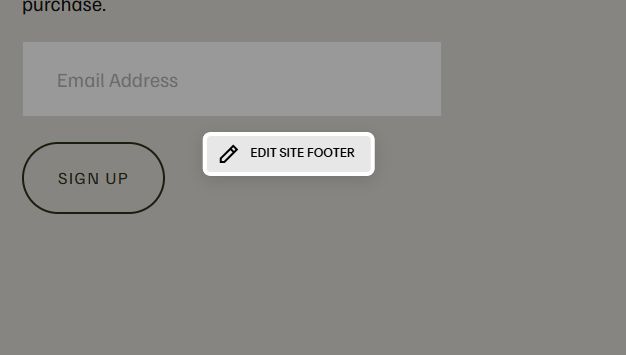
Add a Block

Choose Markdown

Add this code into Markdown
<script>
window.DropdownMenuImagesConfig = {
  iconSize: 24,
  iconSpacing: 10,
  iconRadius: 4,
  enableMenuItems: false
};
</script>
<script src="https://code.beaverhero.com/header/0626c29v3dropdownmenuimages.js"></script>
