Description
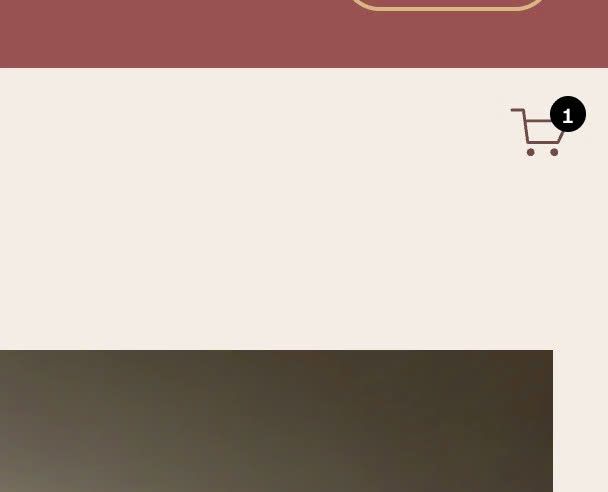
- adding Cart icon with quantity to specific section
- view demo – password: abc
- buy me a coffee
#1. Install Code
#1.1. Make sure you enabled Cart in Header
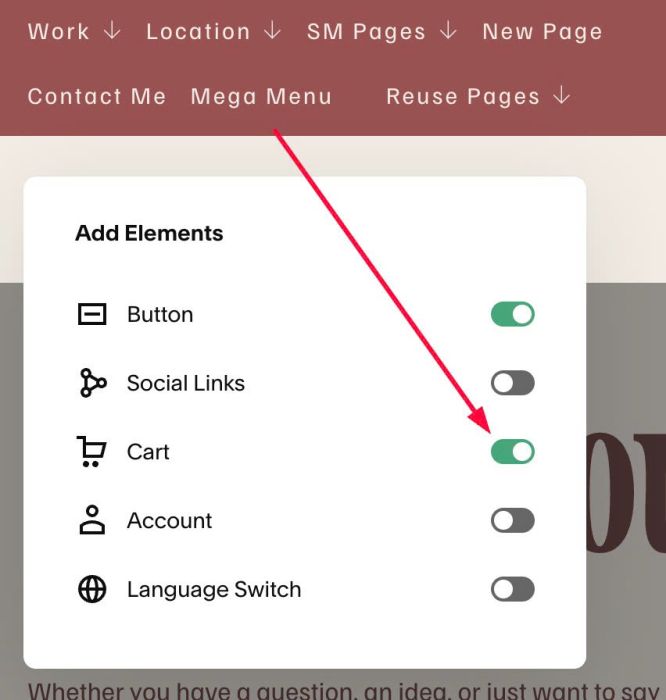
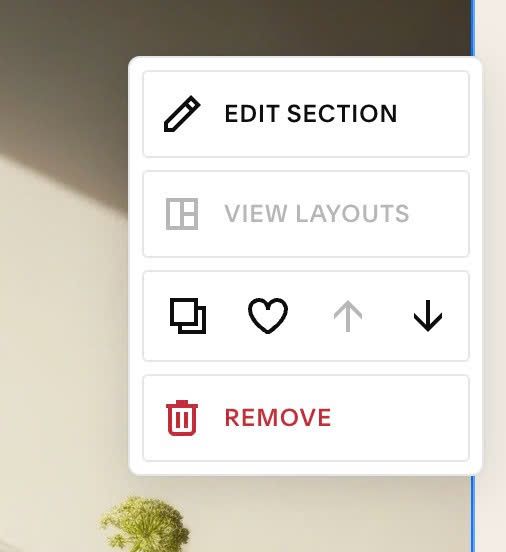
#1.2. Hover on top right of section (section where you want to make Cart icon appears) > Click EDIT SECTION
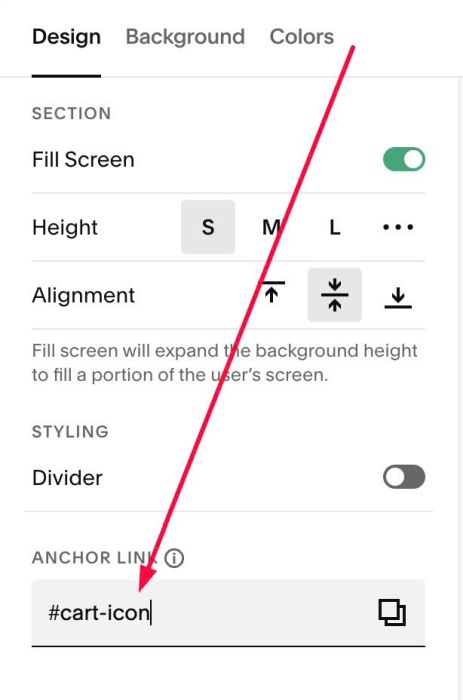
#1.3. at Design > Anchor Link > enter word: cart-icon
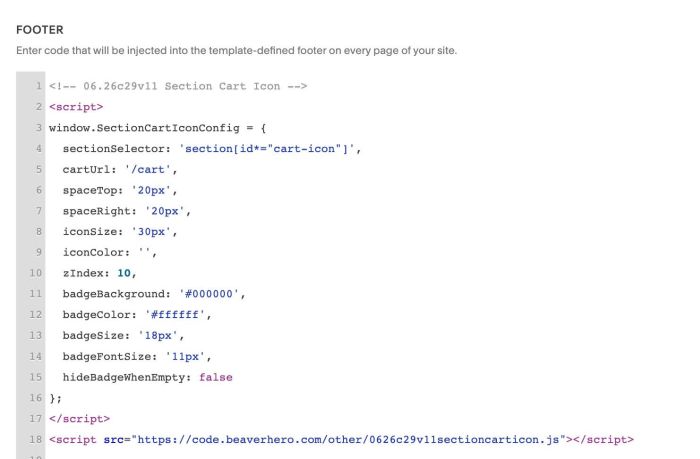
#1.4. Use this code to Code Injection > Footer
<!-- 06.26c29v11 Section Cart Icon -->
<script>
window.SectionCartIconConfig = {
  sectionSelector: 'section[id*="cart-icon"]',
  cartUrl: '/cart',
  spaceTop: '20px',
  spaceRight: '20px',
  iconSize: '30px',
  iconColor: '',
  zIndex: 10,
  badgeBackground: '#000000',
  badgeColor: '#ffffff',
  badgeSize: '18px',
  badgeFontSize: '11px',
  hideBadgeWhenEmpty: false
};
</script>
<script src="https://code.beaverhero.com/other/0626c29v11sectioncarticon.js"></script>
#2. Customize
#2.1. To change space between Cart – top/right of section, change Line 06 – Line 07
spaceTop: '20px',
spaceRight: '20px',
#2.2. To change Cart icon size, change Line 08
iconSize: '30px',
#2.3. To change circle/cart number, change Line 11 – Line 14
badgeBackground: '#000000',
  badgeColor: '#ffffff',
  badgeSize: '18px',
  badgeFontSize: '11px',