Description
- change product image to video
- view demo – password: abc
- buy me a coffee

#1. Install Code
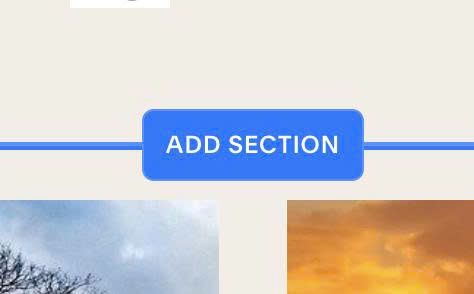
#1.1. First, edit a Product > Click Add Section
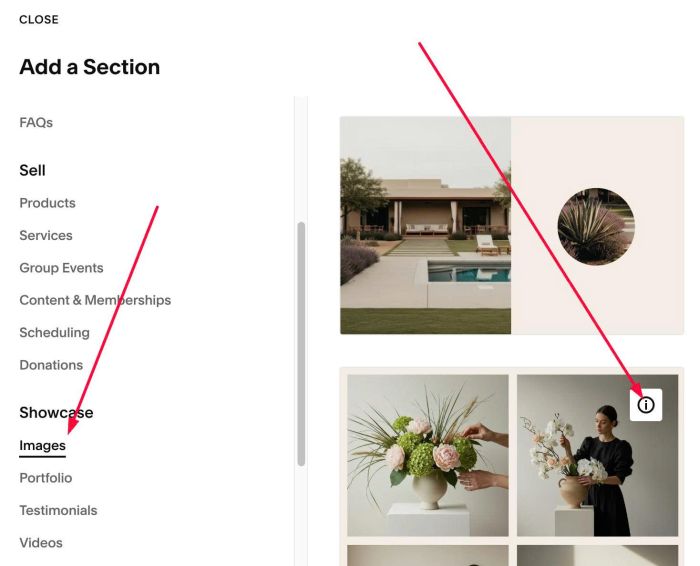
#1.2. Click Images > Choose section with (i) icon
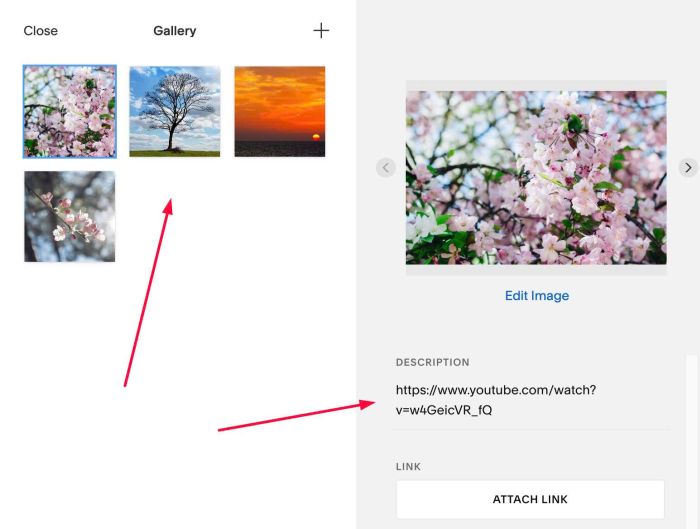
#1.3. Next, use Images same as Images in Product Images, then paste video URL to Link field. You can use Youtube, Vimeo or Uploaded video
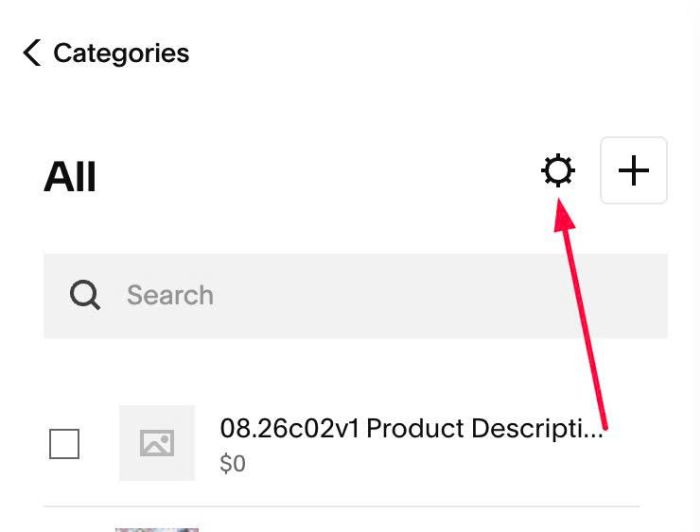
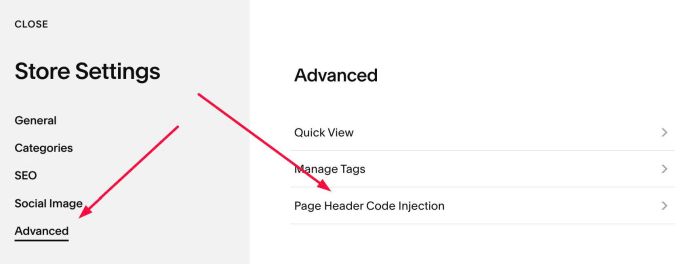
#1.4. Click Gear icon on Store Page
#1.5. Click Advanced > Page Header Code Injection
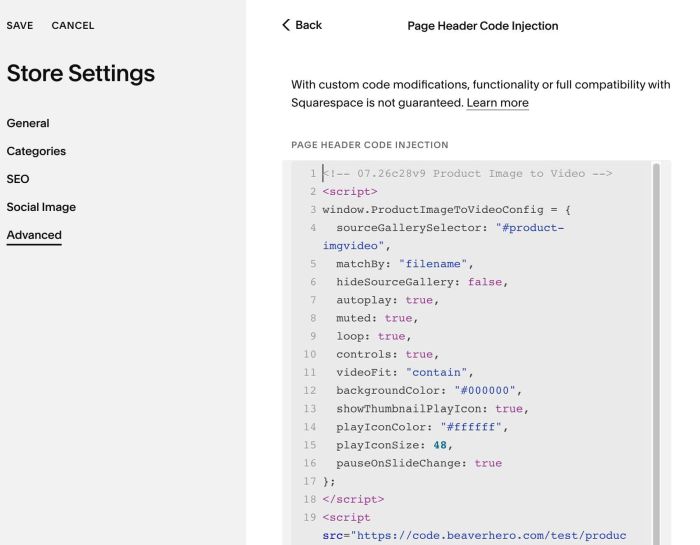
#1.6. Paste this code to right box
<!-- 07.26c28v9 Product Image to Video -->
<script>
window.ProductImageToVideoConfig = {
  sourceGallerySelector: "#product-imgvideo",
  matchBy: "filename",
  hideSourceGallery: false,
  autoplay: true,
  muted: true,
  loop: true,
  controls: true,
  videoFit: "contain",
  backgroundColor: "#000000",
  showThumbnailPlayIcon: true,
  playIconColor: "#ffffff",
  playIconSize: 48,
  pauseOnSlideChange: true
};
</script>
<script src="https://code.beaverhero.com/test/productdetail/0726c28v9productimgvideo.js"></script>
#2. Customize
#2.1. To hide Images Section, you can change Line 06
hideSourceGallery: false,
to
hideSourceGallery: true,
#2.2. All other options in Line 07 to Line 16
autoplay: true,
  muted: true,
  loop: true,
  controls: true,
  videoFit: "contain",
  backgroundColor: "#000000",
  showThumbnailPlayIcon: true,
  playIconColor: "#ffffff",
  playIconSize: 48,
  pauseOnSlideChange: true