A. One Page
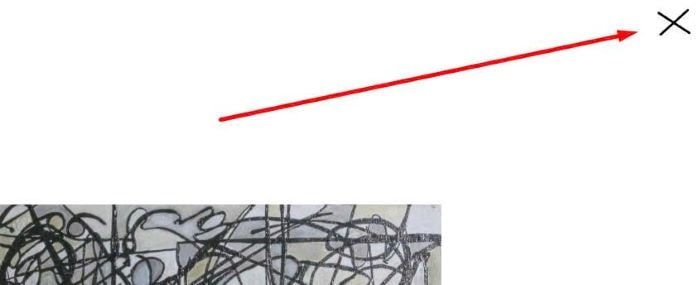
To add close X icon in top right of page, click it will open another page, like this.
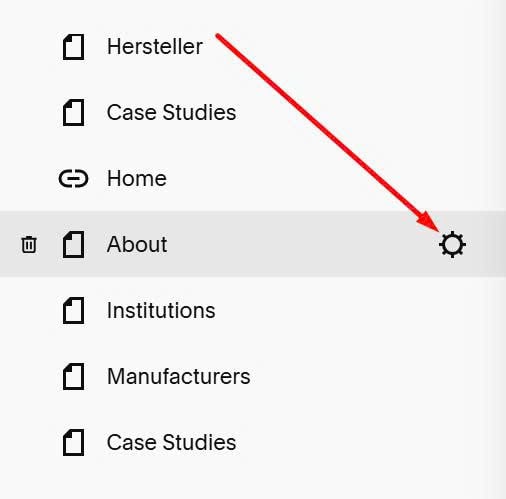
#1. Hover on Page Name > Click Gear icon
#2. Click Advanced > Paste this code to right box
<!-- Close icon in top right of page -->
<link rel="stylesheet" href="https://cdnjs.cloudflare.com/ajax/libs/font-awesome/6.7.2/css/all.min.css">
<a href="/creations" class="close-back">
<i class="fa-solid fa-slash"></i>
  <i class="fa-solid fa-slash"></i>
</a>
<style>
 a.close-back {
    position: fixed;
    top: 10px;
    right: 10px;
    z-index: 99;
}
  a.close-back {
      color: #000;
    font-size: 20px;
  }
  i.fa-solid.fa-slash:nth-child(2) {
    transform: rotate(100deg);
    position: absolute;
    right: 0;
}
i.fa-solid.fa-slash:nth-child(1) {
    transform: rotate(-5deg);
}
</style>
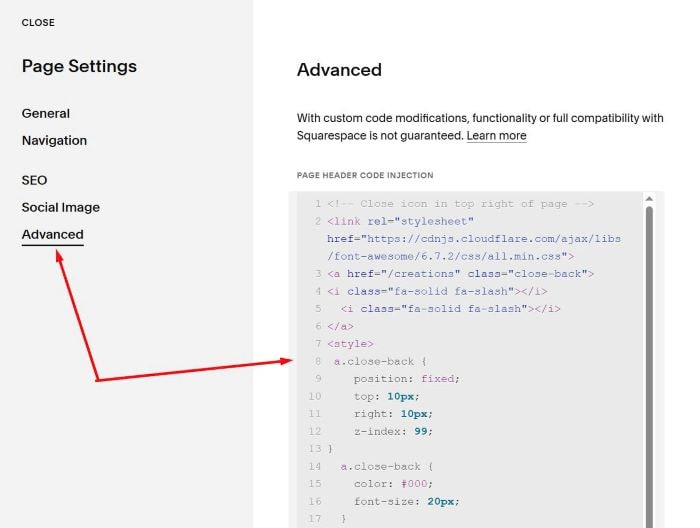
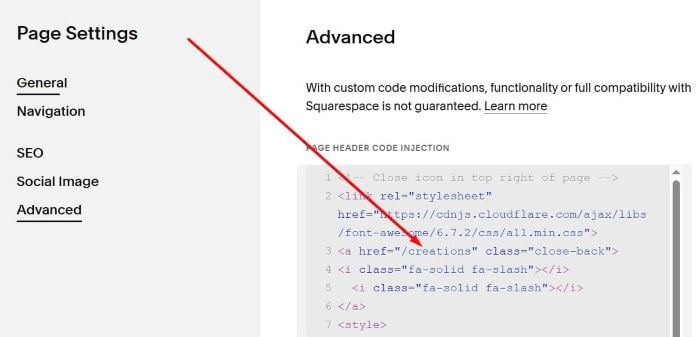
#3.1. You need to change this Page URL. It means, when users click on X, it will open /creations page
#3.2. You can change this if you want to adjust space between X – top of screen/right of screen
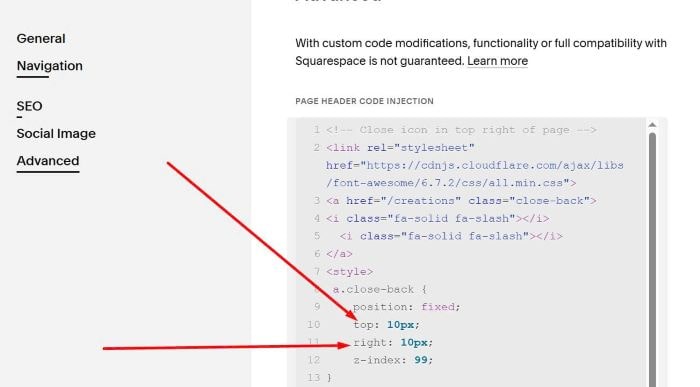
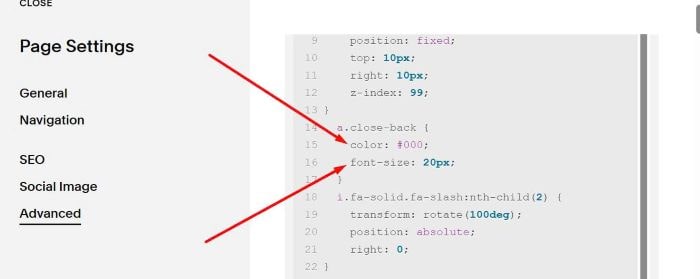
#3.3. You can change this if you want to change Size + Color of X icon.
B. Multi Pages
For example you need to set this on 45/100 pages on your website.
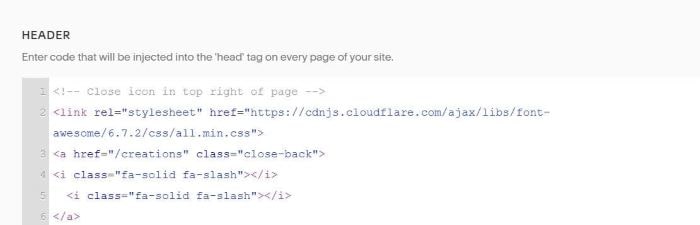
#1. Use this code to Code Injection > Header
<!-- Close icon in top right of page -->
<link rel="stylesheet" href="https://cdnjs.cloudflare.com/ajax/libs/font-awesome/6.7.2/css/all.min.css">
<a href="/creations" class="close-back">
<i class="fa-solid fa-slash"></i>
  <i class="fa-solid fa-slash"></i>
</a>
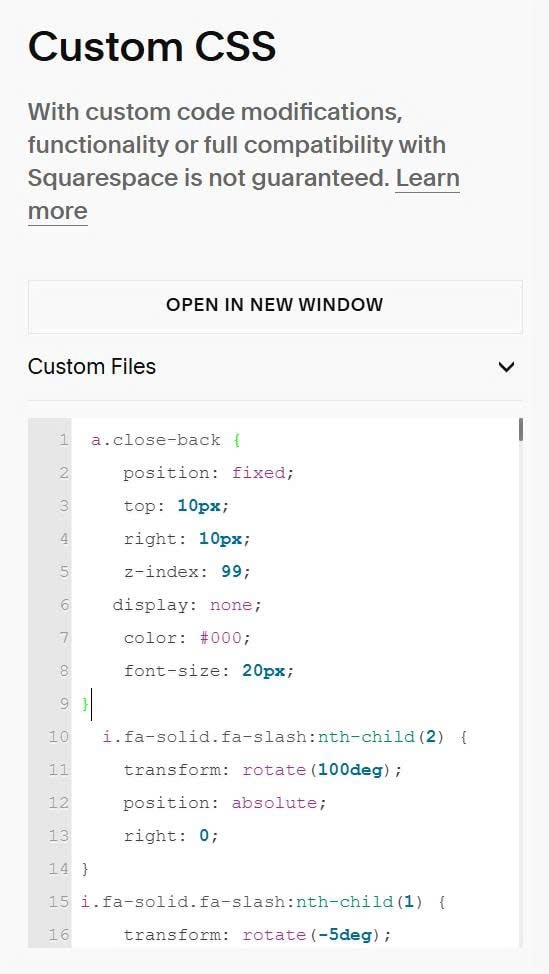
#2. Next, use this code to Custom CSS
 a.close-back {
    position: fixed;
    top: 10px;
    right: 10px;
    z-index: 99;
   display: none;
    color: #000;
    font-size: 20px;
}
  i.fa-solid.fa-slash:nth-child(2) {
    transform: rotate(100deg);
    position: absolute;
    right: 0;
}
i.fa-solid.fa-slash:nth-child(1) {
    transform: rotate(-5deg);
}
body:has(.big-image a.close-back) {
  display: block !important;
}
#3. Explain
- Code will add Close icon to All Pages
- Next, code will hide it on All Pages
- Next, code will show it on Pages with ID: .big-image (This is ID that will appear on the Pages where you use the Code Block for the Click Thumbnails – Change Big Image feature.)