Description
- adding a button between Pagination Titles in Portfolio Page, you can set button point to portfolio url, or make it return to top of page, you can set button style with button text or change it to custom icon.
- view demo – password: abc
- buy me a coffee

#1. Install Code
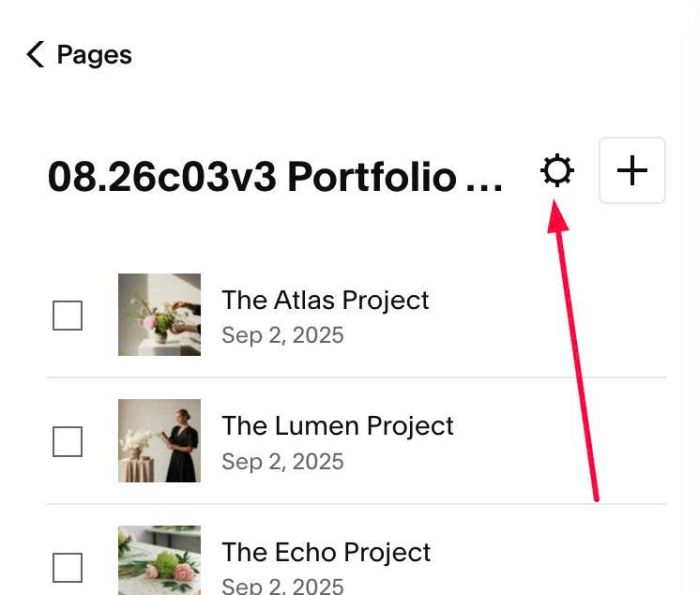
#1.1. Click Gear icon on Portfolio Page
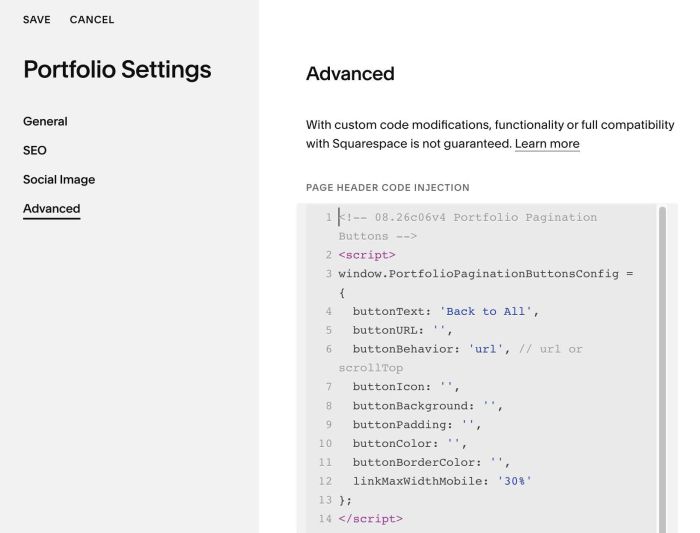
#1.2. Click Advanced > Paste this code
- If you use Personal/Basic Plan and your plan doesn’t support Injection, see #3.1
<!-- 08.26c06v4 Portfolio Pagination Buttons -->
<script>
window.PortfolioPaginationButtonsConfig = {
  buttonText: 'Back to All',
  buttonURL: '',
  buttonBehavior: 'url', // url or scrollTop
  buttonIcon: '',
  buttonBackground: '',
  buttonPadding: '',
  buttonColor: '',
  buttonBorderColor: '',
  linkMaxWidthMobile: '30%'
};
</script>
<script src="https://code.beaverhero.com/portfolio/0826c06v4portfoliopaginationbutton.js"></script>
#2. Customize
#2.1. You can change Button Text in Line 04
buttonText: 'Back to All',
#2.2. If you want to make button click to top instead of opening portfolio overview url, you can change line 06
buttonBehavior: 'url', // url or scrollTop
to
buttonBehavior: 'scrollTop', // url or scrollTop
#2.3. If you want to change Button to Icon, like this

You can change this line 07
buttonIcon: '',
to something like this (here I use SVG icon from FontAwesome site)
buttonIcon: '<svg xmlns="http://www.w3.org/2000/svg" viewBox="0 0 640 640"><!--!Font Awesome Free v7.3.1 by @fontawesome - https://fontawesome.com License - https://fontawesome.com/license/free Copyright 2026 Fonticons, Inc.--><path d="M152 160C174.1 160 192 177.9 192 200L192 248C192 270.1 174.1 288 152 288L104 288C81.9 288 64 270.1 64 248L64 200C64 177.9 81.9 160 104 160L152 160zM344 288L296 288C273.9 288 256 270.1 256 248L256 200C256 177.9 273.9 160 296 160L344 160C366.1 160 384 177.9 384 200L384 248C384 270.1 366.1 288 344 288zM536 288L488 288C465.9 288 448 270.1 448 248L448 200C448 177.9 465.9 160 488 160L536 160C558.1 160 576 177.9 576 200L576 248C576 270.1 558.1 288 536 288zM536 480L488 480C465.9 480 448 462.1 448 440L448 392C448 369.9 465.9 352 488 352L536 352C558.1 352 576 369.9 576 392L576 440C576 462.1 558.1 480 536 480zM344 352C366.1 352 384 369.9 384 392L384 440C384 462.1 366.1 480 344 480L296 480C273.9 480 256 462.1 256 440L256 392C256 369.9 273.9 352 296 352L344 352zM152 480L104 480C81.9 480 64 462.1 64 440L64 392C64 369.9 81.9 352 104 352L152 352C174.1 352 192 369.9 192 392L192 440C192 462.1 174.1 480 152 480z"/></svg>',
and to remove Border, you can change line 11
buttonBorderColor: '',
to
buttonBorderColor: 'transparent',
#2.4. If you need to tweak more you can use this AI Assistant (designed for Squarespace sites)
#3. Other
#3.1. If you use Personal/Basic Plan and your plan doesn’t support Injection, you can edit Site Footer
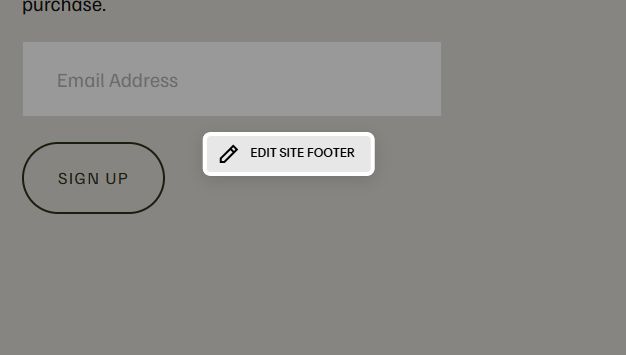
Add a Markdown Block

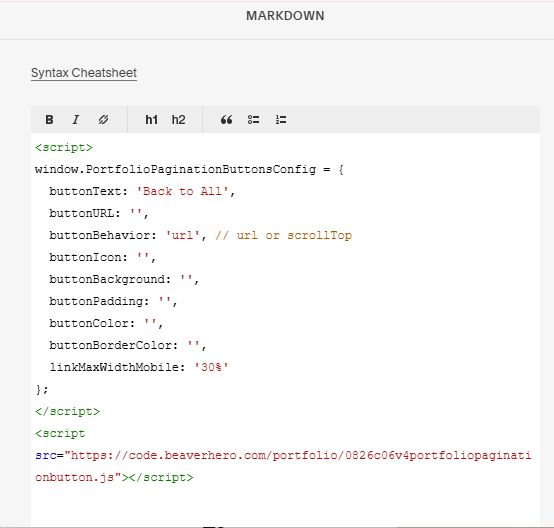
Add this code into Markdown
<script>
window.PortfolioPaginationButtonsConfig = {
  buttonText: 'Back to All',
  buttonURL: '',
  buttonBehavior: 'url', // url or scrollTop
  buttonIcon: '',
  buttonBackground: '',
  buttonPadding: '',
  buttonColor: '',
  buttonBorderColor: '',
  linkMaxWidthMobile: '30%'
};
</script>
<script src="https://code.beaverhero.com/portfolio/0826c06v4portfoliopaginationbutton.js"></script>