Description
- text block with heading, splash between heading
- view demo – password: abc
- buy me a coffee

#1. Install Code
#1.1. First, make sure you added some text with Heading 4

#1.2. Highlight each text > Make them italic

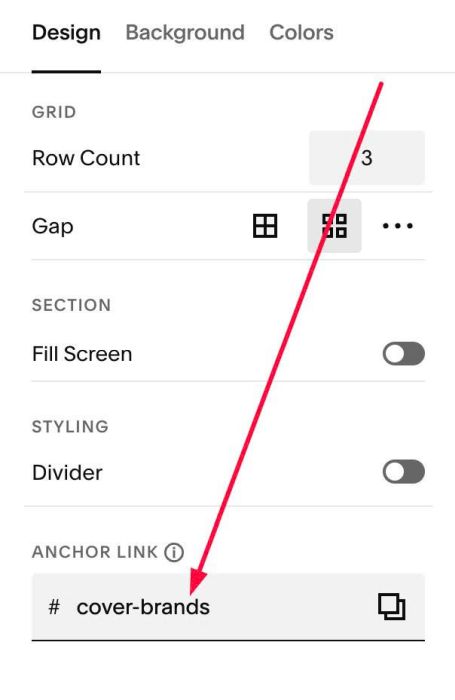
#1.3. Hover on top right of section where you use Text Block > Click EDIT SECTION > at Design > Anchor Link > enter word: cover-brands
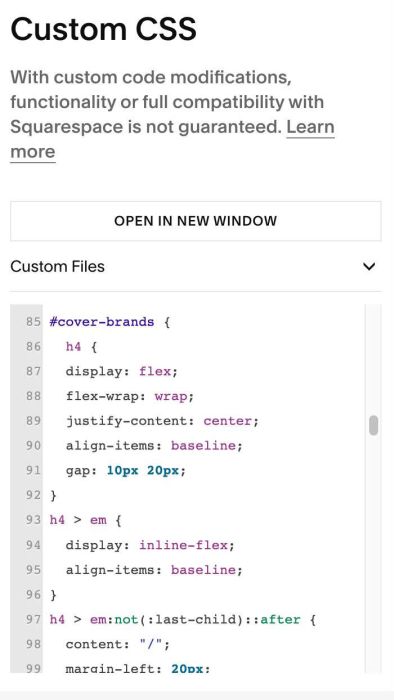
#1.4. Next, use this code to Custom CSS
<!-- 10.26c18v8 Text Block 189 Style 03: Heading with Splash -->
#cover-brands {
  h4 {
  display: flex;
  flex-wrap: wrap;
  justify-content: center;
  align-items: baseline;
  gap: 10px 20px;
}
h4 > em {
  display: inline-flex;
  align-items: baseline;
}
h4 > em:not(:last-child)::after {
  content: "/";
  margin-left: 20px;
  font-size: 0.7em;
  font-style: normal;
  color: ~"hsl(var(--darkAccent-hsl))";
  }}
#2. Customize
#2.1. To change splash color, change this line
color: ~"hsl(var(--darkAccent-hsl))";
you can use hex color, like this
color: #f1f;
#2.2. To change space between Text – Splash/Splash – Text, change these lines
margin-left: 20px;
and
gap: 10px 20px;
#2.3. To change Splash to another symbol, change this line
content: "/";